This guide walks a buyer through subscribing to an RDF Cluster plan on AWS Marketplace and running the cluster from the buyer portal. Reference detail (ports, limits, shell troubleshooting) is in the buyer runbook.
Screenshots were taken on 12 November 2026 from the production portal with a Cluster Starter test subscription. Host names, IDs and dates will differ for your cluster. Prices and offer terms in screenshots are illustrative; the live AWS Marketplace offer is authoritative.
Important links
- AWS Marketplace product page: Virtuoso SaaS Managed Service
- Buyer portal: Virtuoso SaaS
- AWS Marketplace subscriptions: Manage subscriptions
Start from the AWS Marketplace product page. Do not bookmark or open the Virtuoso SaaS registration URL directly: AWS Marketplace supplies a one-time setup link after a successful purchase.
1. Choose a plan
The product on AWS Marketplace is Virtuoso SaaS Managed Service. It offers Single Server plans and six RDF Cluster plans. A cluster is one publisher node that accepts writes and two to five read-only subscriber nodes, kept in sync by Virtuoso replication.
| Plan | Nodes | Each node | 1 year | 2 years | 3 years |
|---|---|---|---|---|---|
| Cluster Starter | 1 publisher + 2 subscribers | 2 vCPU, 8 GB | $12,564 | $22,615 | $32,038 |
| Cluster Professional | 1 publisher + 3 subscribers | 4 vCPU, 16 GB | $21,564 | $38,815 | $54,988 |
| Cluster Business | 1 publisher + 5 subscribers | 8 vCPU, 32 GB | $35,964 | $64,735 | $91,708 |
| Cluster Enterprise | 1 publisher + 5 subscribers | 16 vCPU, 64 GB | $57,564 | $103,615 | $146,788 |
| Cluster Enterprise Ultra | 1 publisher + 5 subscribers | 32 vCPU, 120 GB | $107,964 | $194,335 | $275,308 |
| Cluster Enterprise Max | 1 publisher + 5 subscribers | 32 vCPU, 244 GB | $179,964 | $323,935 | $458,908 |
- Contracts are prepaid for one, two or three years. The 24- and 36-month contracts cost less per year.
- Two usage charges are added to the contract price when used: storage above the included 50 GB at $0.50 per GB-month, and data transfer at $0.10 per GB. They appear on your AWS bill.
- Every cluster runs Virtuoso Commercial Edition in AWS US East (N. Virginia),
us-east-1. - The price is the same whether the cluster is running or stopped.
- For installments, a custom term or a different price, ask OpenLink for a private offer (section 2).
The Pricing tab of the product page shows every plan for each contract length. Single Server plans (Developer to Enterprise Max) and RDF Cluster plans are listed together; cluster plans start with “RDF Cluster”.
2. Subscribe
You need to be signed in to AWS with a user allowed to buy from AWS Marketplace in the AWS account that will own the subscription (for example, the AWSMarketplaceManageSubscriptions managed policy). The charges go on that account’s AWS bill.
Public offer
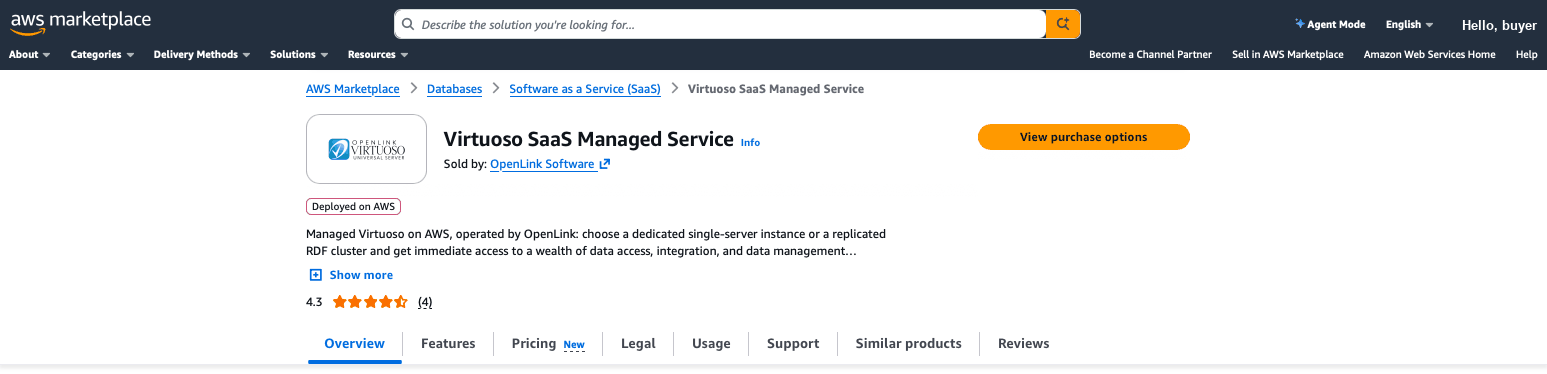
1. Open the product page. Open Virtuoso SaaS Managed Service on AWS Marketplace and choose View purchase options.
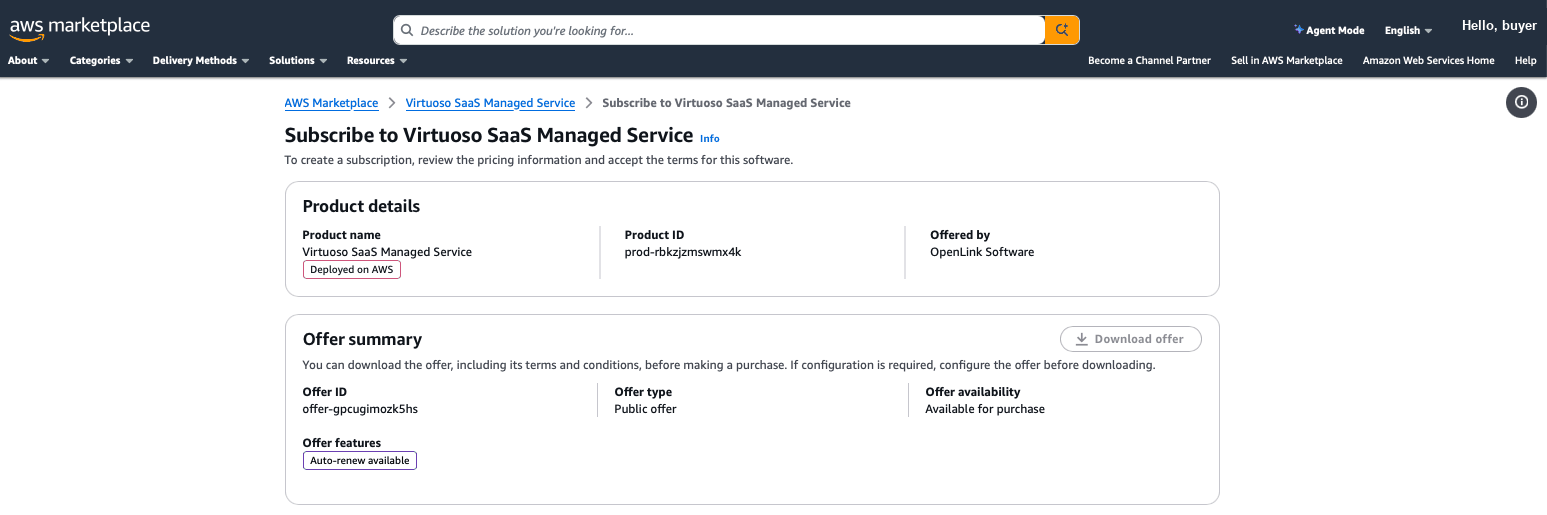
2. Check the offer. The Subscribe to Virtuoso SaaS Managed Service page shows the product and the offer. For the public offer, Offer type is Public offer.
3. Choose the contract duration: 12, 24 or 36 months. The page shows the start and end dates.

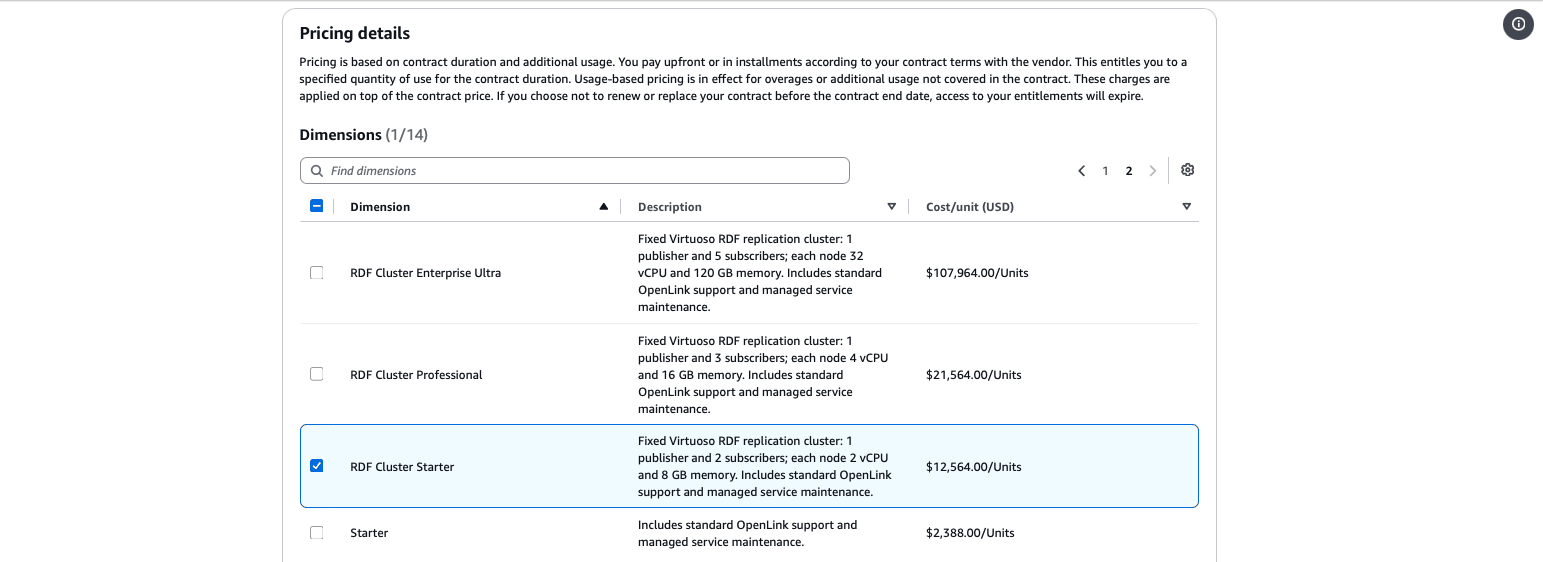
4. Select one RDF Cluster plan. Under Pricing details, tick the box for one plan whose name starts with “RDF Cluster” (for example RDF Cluster Starter). The plans are listed over two pages. Leave every other plan unticked: a subscription that includes more than one cluster plan does not start a cluster automatically.
5. Review the usage charges. Storage above the included 50 GB and data transfer are billed on top of the contract price, only when used.

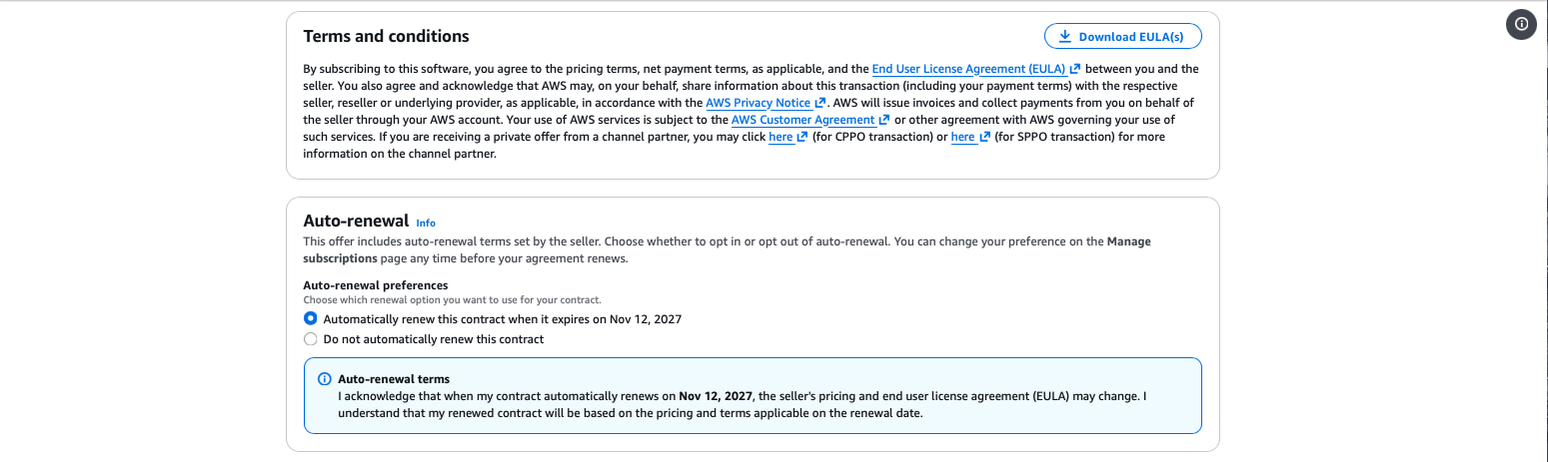
6. Read the terms and choose auto-renewal. Read the terms and the EULA (Download EULA(s)), then choose whether the contract renews automatically at the end of its term. You can change this later in Manage subscriptions.
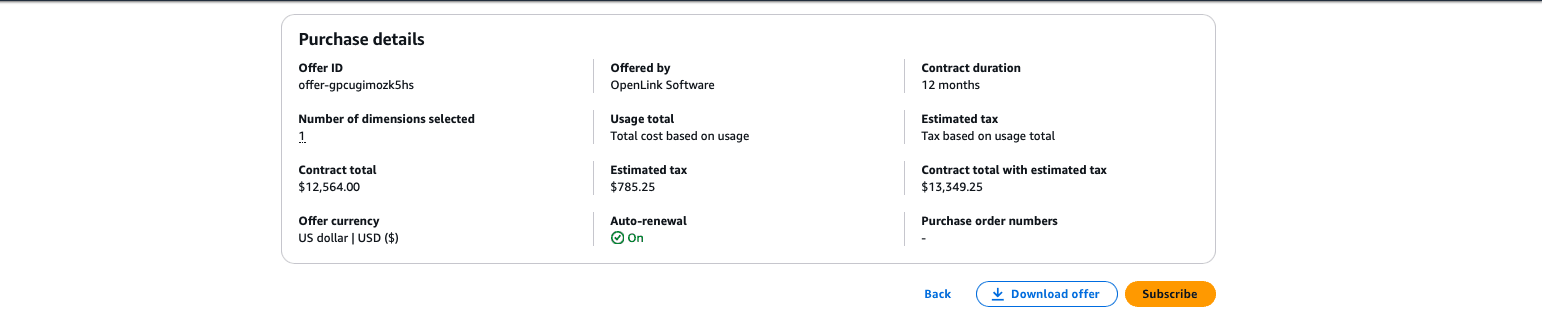
7. Review and subscribe. Check the contract duration, Number of dimensions selected (it must be 1), the contract total, estimated tax and auto-renewal, then choose Subscribe. A Marketplace agreement is a commercial contract: the contract total is charged to your AWS bill.
8. Set up your account. When AWS confirms the purchase, choose Set up your account. AWS sends you to the Virtuoso SaaS registration page (section 3).
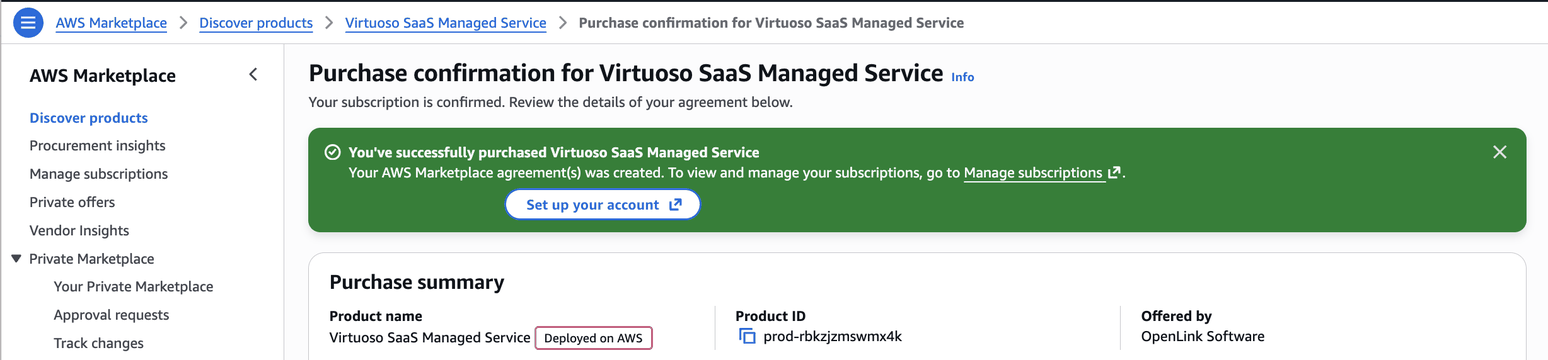
If the AWS page stalls on “redirecting to the seller”, go back to the product’s subscription page in AWS Marketplace and choose Set up your account again. Your subscription is already in place.
Private offer
A private offer is a price or terms that OpenLink makes for your AWS account only, for example an installment plan. Other AWS accounts cannot see it.
- Open the offer link from OpenLink. You can also find the offer in the AWS Marketplace console under Private offers. Sign in to the AWS account the offer was made for.
- Review the plan, price, term and payment schedule, then accept the offer.
- Choose Set up your account and continue at section 3, as for a public offer.
To change plan, add a second cluster, or move to a private offer, contact OpenLink before buying, so that the new subscription and your existing cluster are handled together.
3. Register
First subscription from your AWS account. The registration page shows the AWS account, the product and the plan you bought. Nothing here changes what you pay; the plan and region come from your AWS Marketplace subscription.
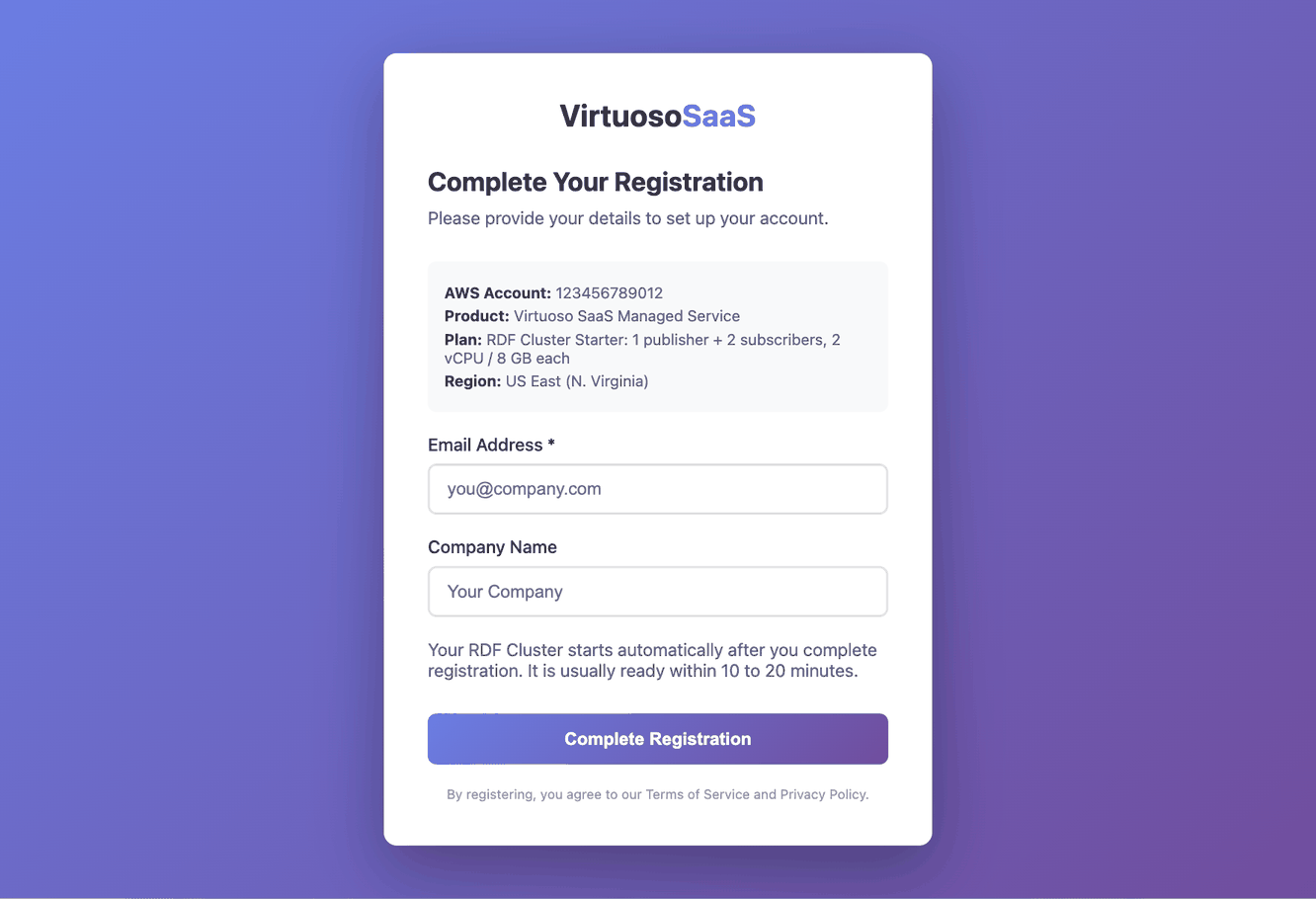
- Enter your email address and, optionally, your company name.
- Choose Complete Registration.
- You are taken to the portal sign-in page. Choose Create an account (or sign in, if you already have one). Signing in from this page links the subscription to your portal account.
Your cluster starts automatically. It is usually ready within 10 to 20 minutes.
Single Server plans use the same page but let you choose a region, and the instance is created after registration.
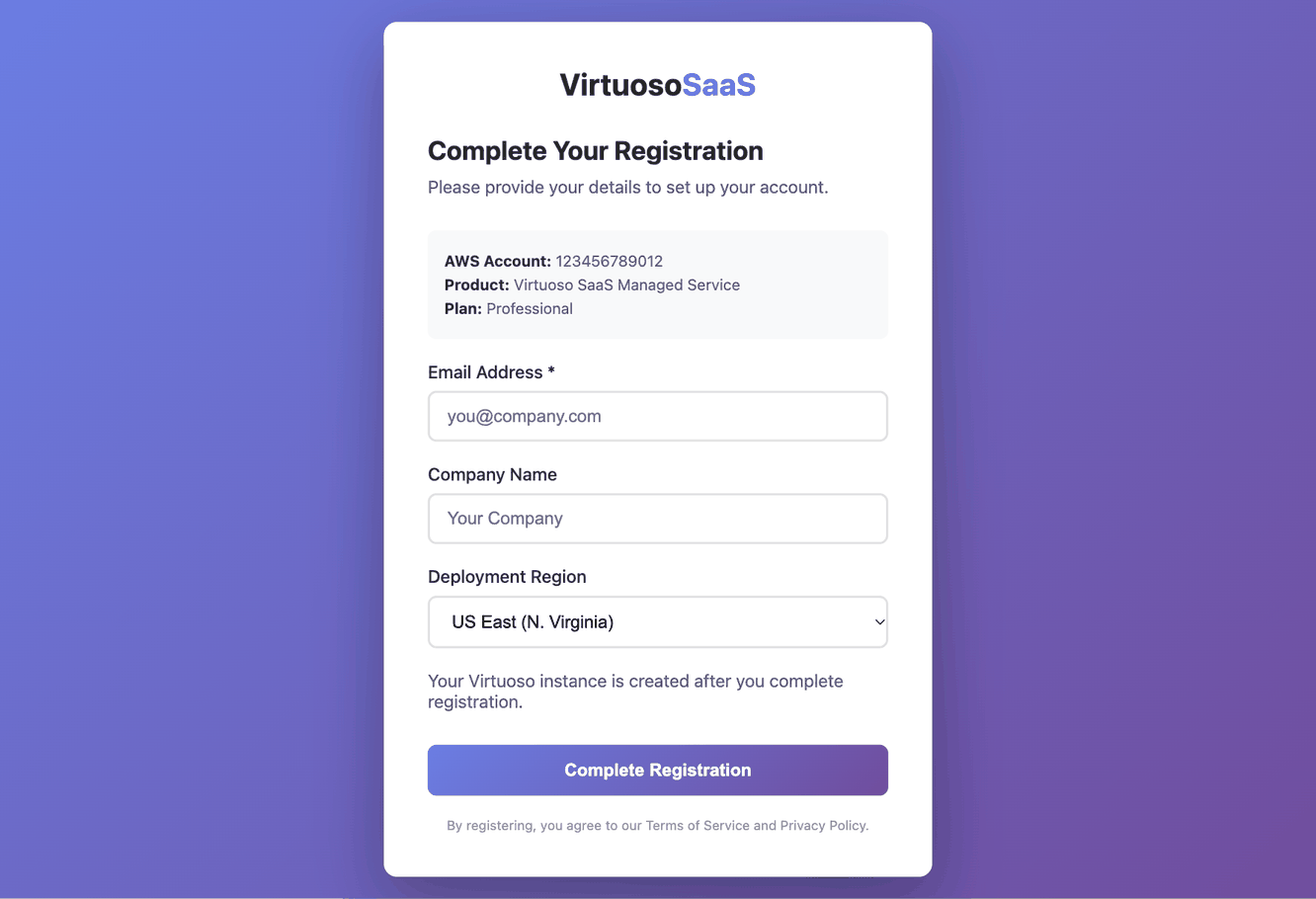
Returning buyers. If your AWS account has subscribed before, Set up your account skips the registration page and takes you straight to the portal. A new subscription becomes a new entry in the portal’s Subscription selector (section 4), and its cluster starts automatically.
4. Find your cluster
Sign in to the buyer portal. The Dashboard shows your plan and your cluster’s status.
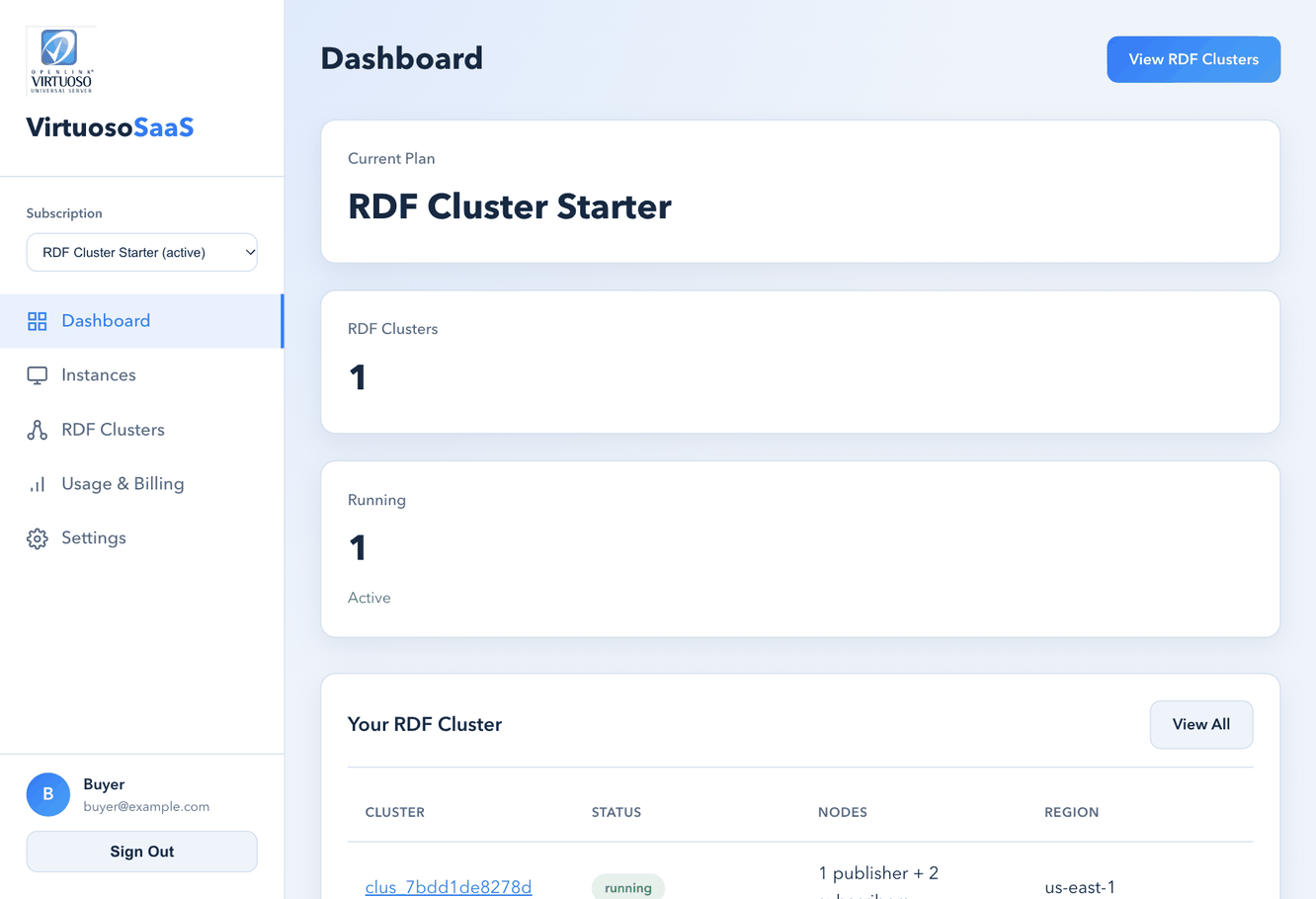
Choose View RDF Clusters, or RDF Clusters in the sidebar.
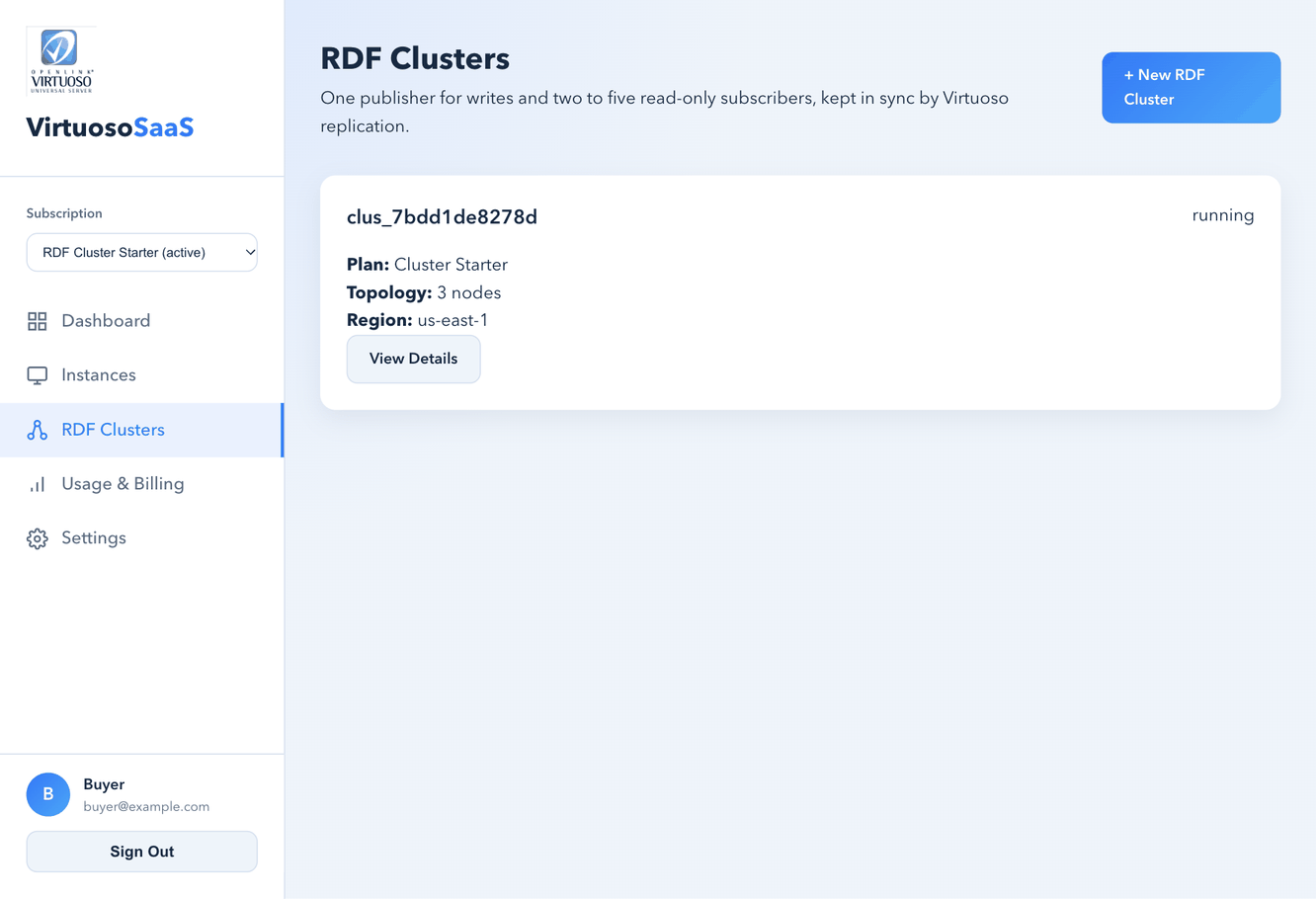
- Subscription (top of the sidebar): each AWS Marketplace subscription is listed by plan and state, for example “RDF Cluster Starter (active)”. The portal opens on your newest active subscription. If you choose another one, it stays selected until a newer subscription appears.
- The cluster shows provisioning while it is being built and running once every node is up and replication has been verified.
- Choose View Details to open the cluster page. Everything in sections 5 to 10 is on that page.
You do not need to create the cluster. + New RDF Cluster is only for replacing a cluster you terminated (section 9).
5. Cluster overview and connection details
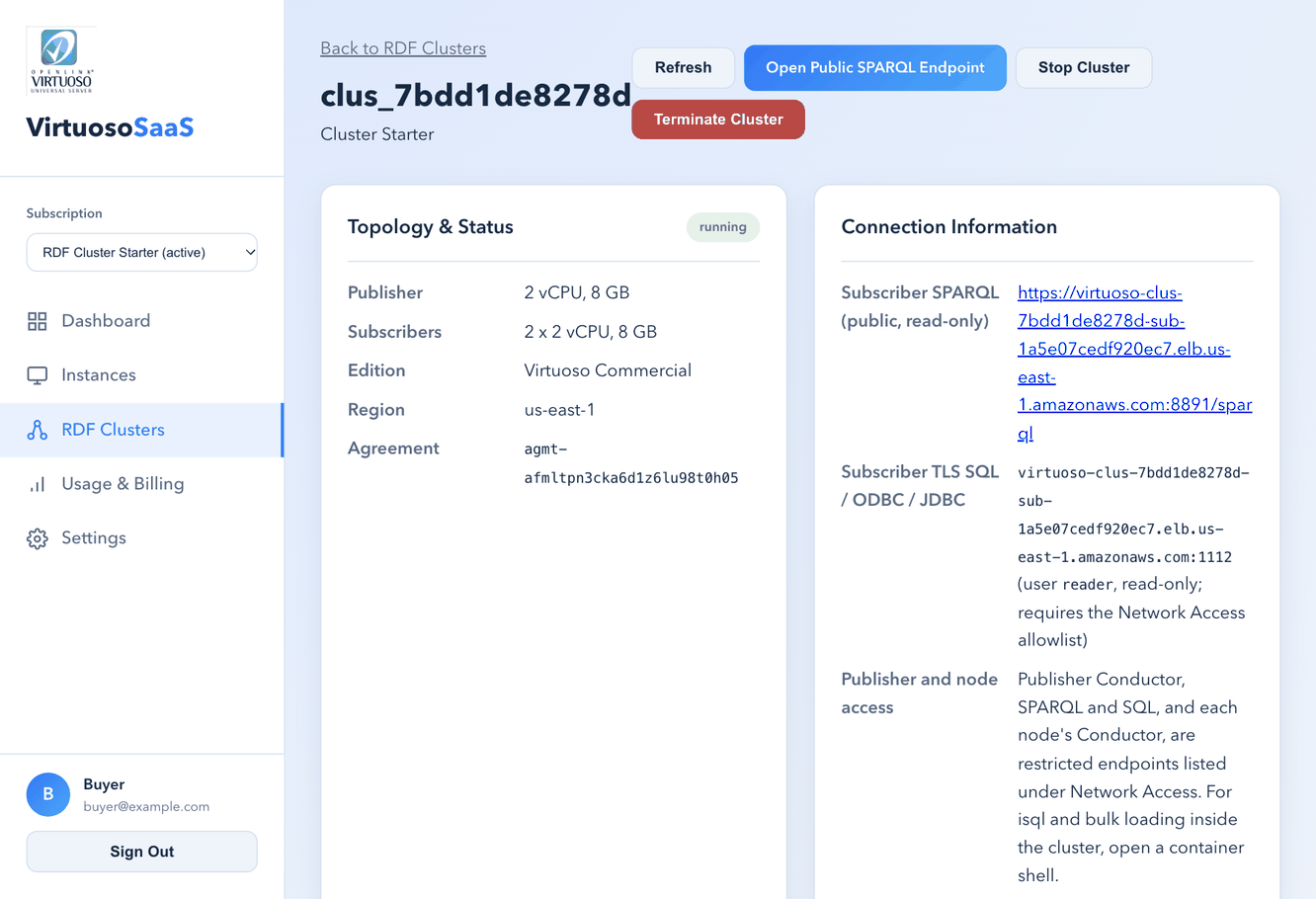
- Topology & Status: node sizes, edition, region and your AWS Marketplace agreement ID.
- Connection Information:
- Subscriber SPARQL (public, read-only): the endpoint for queries. It is open to the internet and load-balanced across the subscribers. Open Public SPARQL Endpoint at the top of the page opens it.
- Subscriber TLS SQL / ODBC / JDBC: read-only SQL as user
reader. Needs your IP ranges in the Network Access allowlist (section 7). - Publisher and node access: writes and the Conductor admin UI use restricted endpoints, listed under Network Access.
- Refresh reloads the page; the status does not update by itself.
All endpoints use Virtuoso’s own self-signed certificate, so browsers show a certificate warning. SQL clients connect with encryption on; isql with -E prints CL083: self-signed certificate, which is expected.
6. Get the passwords
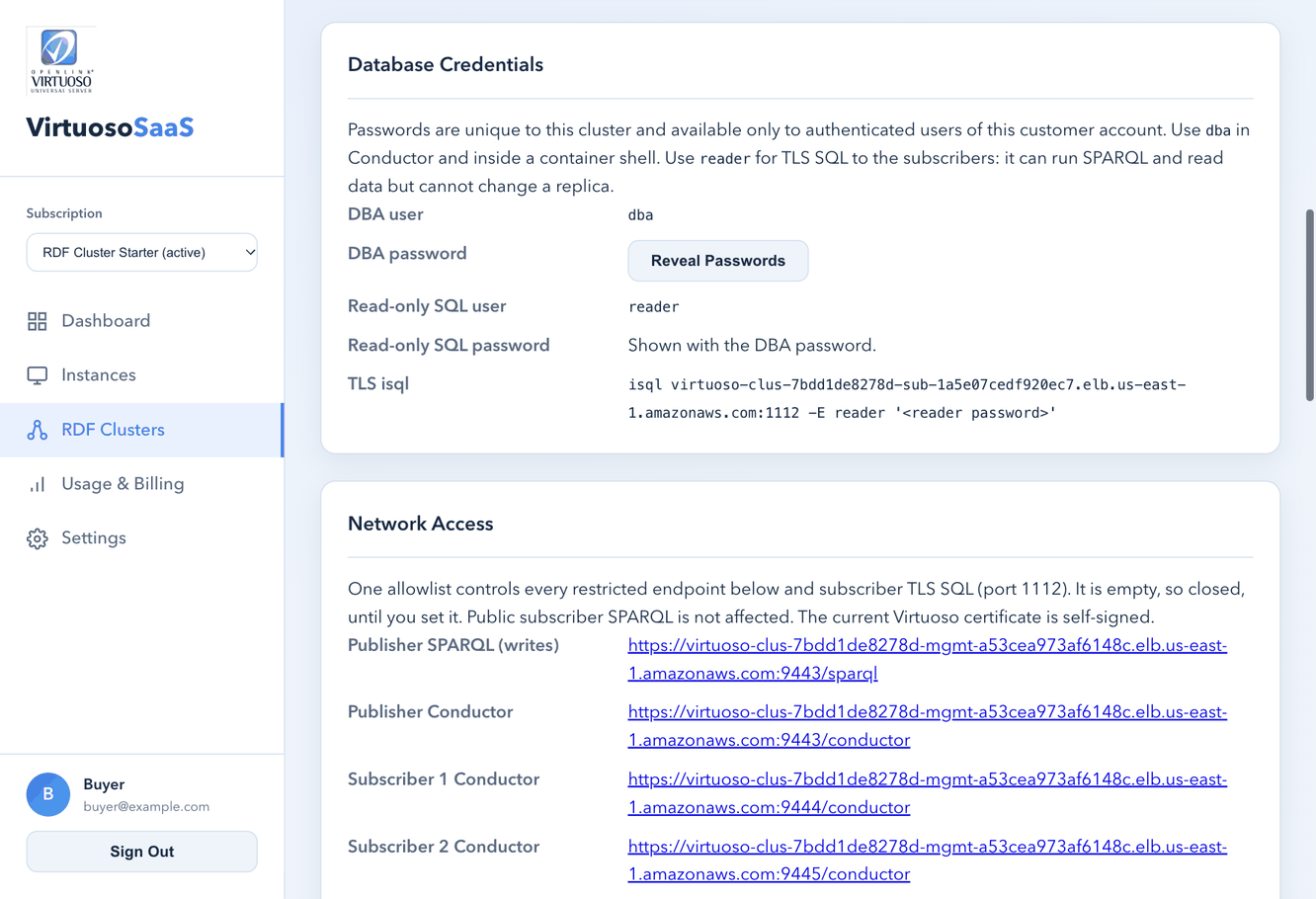
- Choose Reveal Passwords.
- Copy the
dbapassword (publisher, full access) and thereaderpassword (subscribers, read-only).
Passwords are unique to your cluster. Keep the dba password private: anyone with it who is inside your allowlist can change your data. The page shows a ready-made isql command for the subscribers.
7. Open network access
Every restricted endpoint is closed until you set the allowlist. Public subscriber SPARQL is not affected.
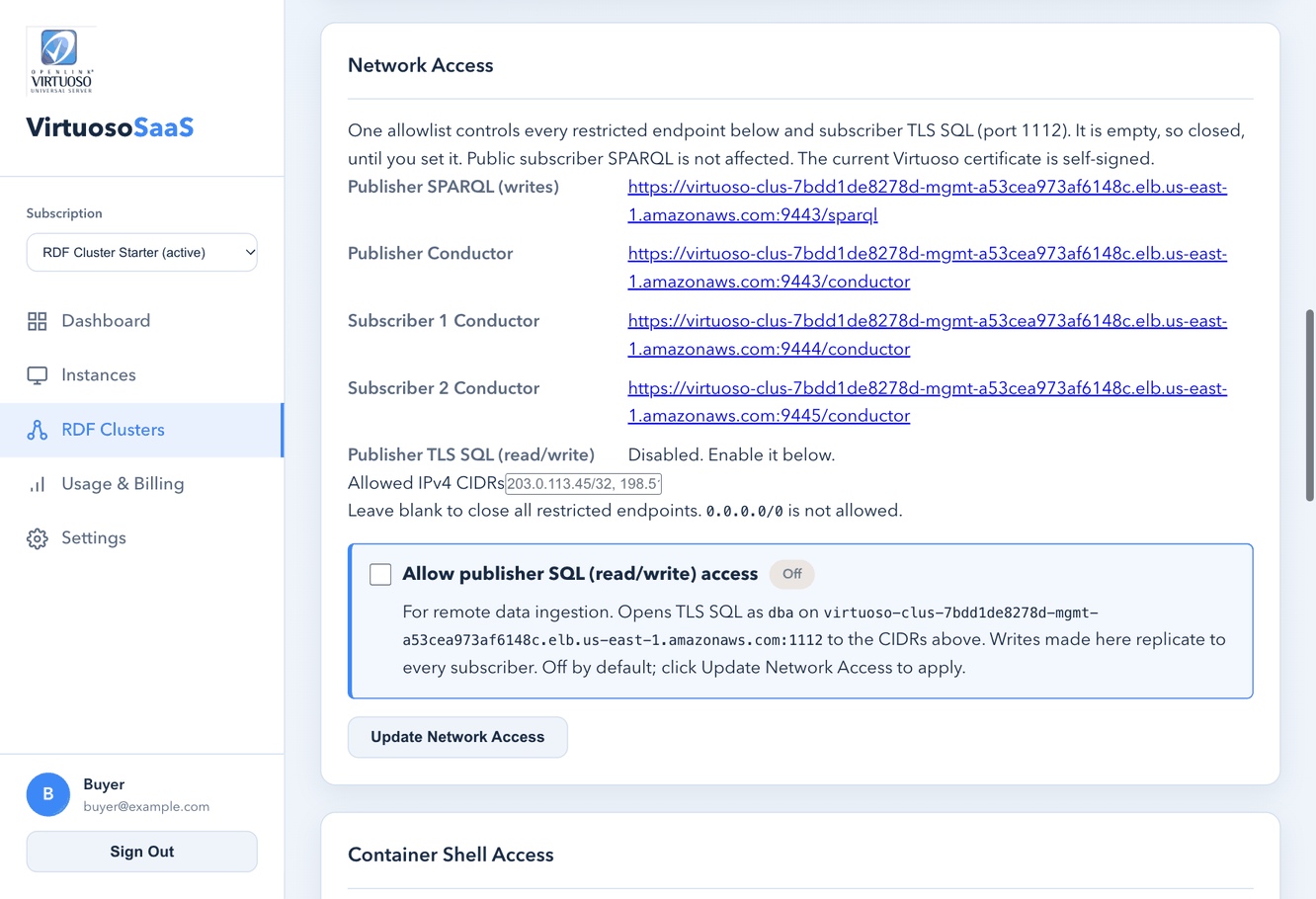
- In Allowed IPv4 CIDRs, enter your address ranges, comma-separated, for example
203.0.113.45/32, 198.51.100.0/24.0.0.0.0/0is not allowed. - Tick Allow publisher SQL (read/write) access only if you need to load data over SQL from your own network. It opens TLS SQL as
dbaon the publisher to the same ranges. - Choose Update Network Access. The change applies in seconds and does not restart any node.
To close everything again, clear the field and choose Update Network Access.
The allowlist then opens:
- Publisher SPARQL (writes) on port 9443.
- Conductor for the publisher (port 9443) and each subscriber (9444 and up).
- Subscriber TLS SQL (port 1112, user
reader). - Publisher TLS SQL (port 1112 on the management host, user
dba), only if ticked.
8. Load and query data
- Queries: public SPARQL, or TLS SQL as
reader. Every subscriber holds the same data. - Writes go to the publisher only: publisher SPARQL, publisher TLS SQL as
dba, or a publisher container shell. Writes made on a subscriber are not replicated and are lost if that subscriber is rebuilt. - Bulk loading: open a publisher container shell (below) and use Virtuoso’s bulk loader (
ld_dir,rdf_loader_run), or use publisher TLS SQL from your network. - Replication is asynchronous: a write normally reaches every subscriber within seconds. The service checks every hour that a fresh write reaches every subscriber.
Container shell
You can open a shell inside any node with AWS CLI v2 and the Session Manager plugin.
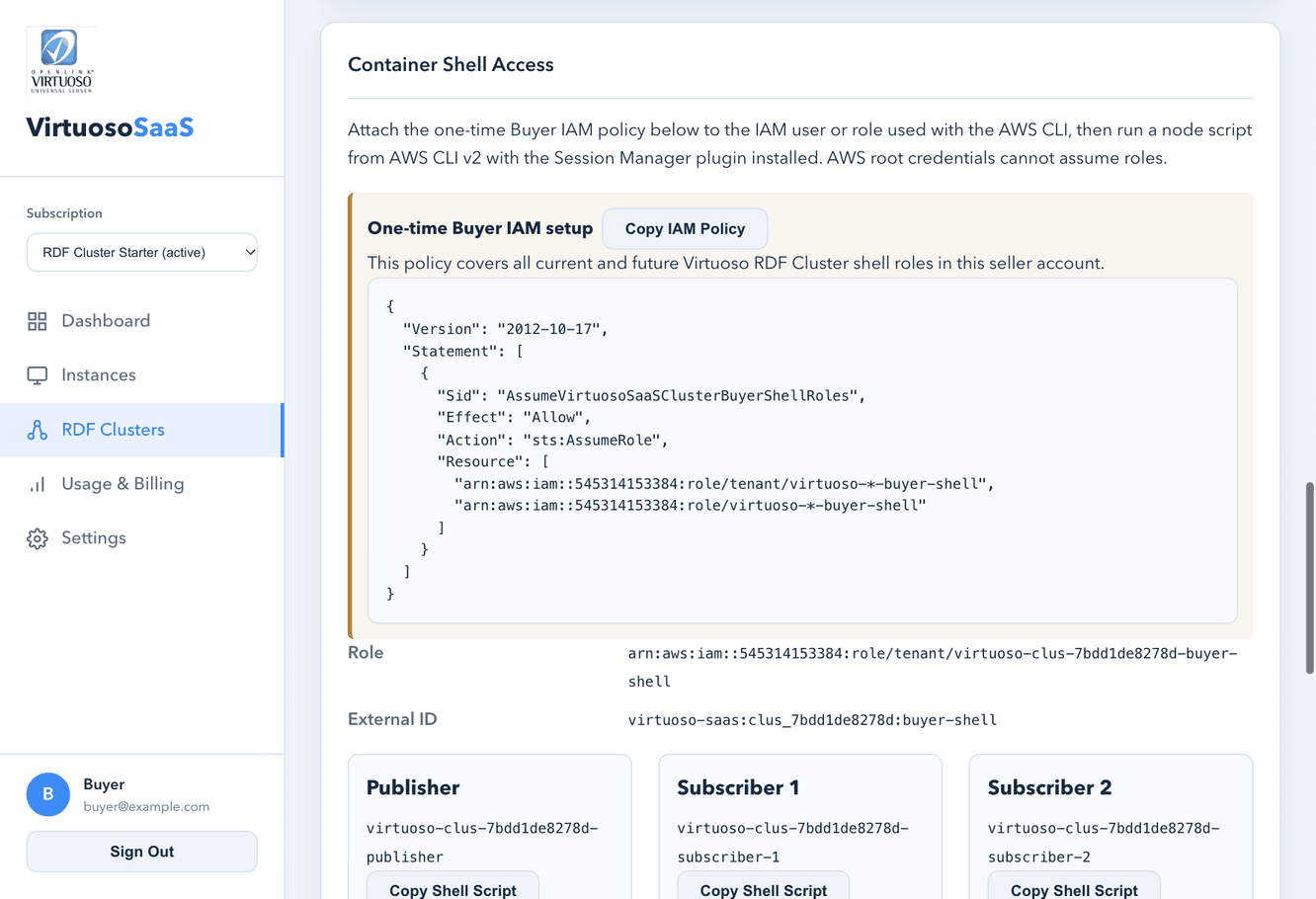
- Once per AWS account: choose Copy IAM Policy and attach the policy to the IAM user or role you use with the AWS CLI. AWS root credentials cannot assume roles.
- Under the node you need (Publisher, Subscriber 1, …), choose Download Script.
- Run it as a file:
bash <script>.sh. Do not paste it into your terminal. - Inside the shell,
isql localhost:1111 dba "$DBA_PASSWORD"connects to that node.
AccessDenied on sts:AssumeRole means the IAM policy from step 1 is missing or out of date.
9. Stop, start or terminate
The buttons are at the top right of the cluster page (section 5).
- Stop Cluster: stops every node. Storage, endpoints and backups are kept. Scheduled backups and the hourly replication check pause.
- Start Cluster: starts the publisher, then the subscribers. The cluster is running again once replication is verified, usually within 10 to 20 minutes.
- Terminate Cluster: destroys every node, its storage and its endpoints. Type the cluster ID to confirm. It cannot be undone, and it does not cancel your AWS Marketplace subscription. You can then build a replacement with + New RDF Cluster on the RDF Clusters page.
10. Backups and restores
-
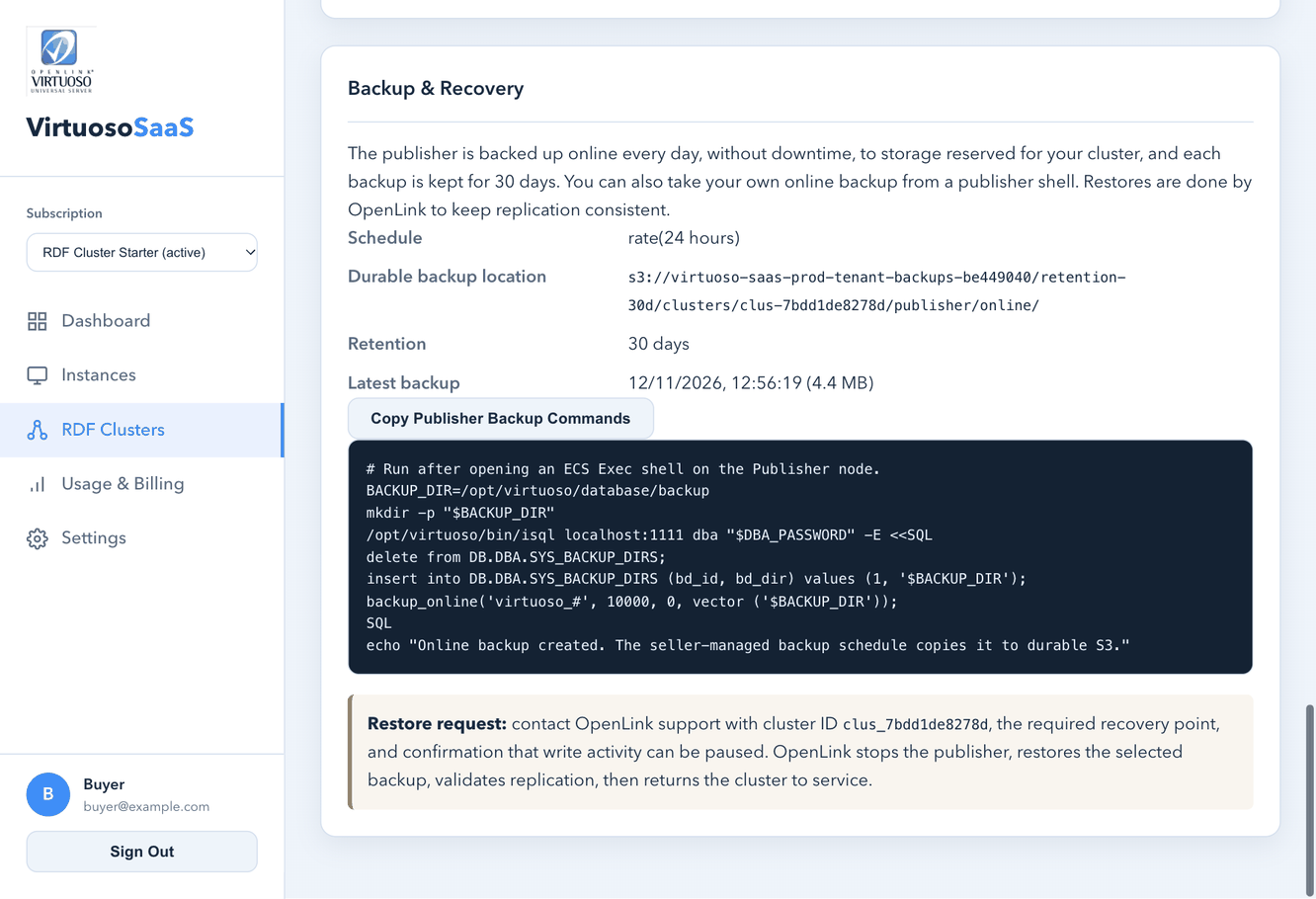
The publisher is backed up online every 24 hours, without downtime, to storage reserved for your cluster. Each backup is kept for 30 days. The page shows the latest backup.
-
To take your own backup, open a publisher container shell and run the commands from Copy Publisher Backup Commands.
-
Restores are done by OpenLink so that replication stays consistent. Contact OpenLink support with:
- your cluster ID
- the recovery point you need
- confirmation that writes can be paused
OpenLink restores the publisher, rebuilds the subscribers, checks replication and returns the cluster to service.
11. Renewal and cancellation
- Use Manage subscriptions in AWS Marketplace to review the agreement and its auto-renewal setting.
- Turning off auto-renewal applies to the next renewal. It does not end the active contract or remove your cluster.
- For cancellation, a refund or an early termination request, follow the agreement terms and contact OpenLink support or AWS Marketplace Support. See the AWS guidance on cancelling a subscription and requesting a refund.
When the agreement ends (cancelled or expired), the cluster is torn down automatically, normally within an hour:
- All restricted endpoints are closed.
- A final publisher backup is taken (if the cluster is running) and kept for 30 days.
- All nodes, storage, endpoints and credentials are removed.
Contact OpenLink support within 30 days if you cancelled by mistake and need that final backup.
12. Getting help
Contact OpenLink support at https://support.openlinksw.com/ with your cluster ID (for example clus_7bdd1de8278d) and your AWS account ID.