Virtuoso SaaS Managed Service Buyer Guide
This guide covers purchasing, setting up, and operating one Virtuoso SaaS
Single Server instance through AWS Marketplace and the buyer portal.
Important Links
- AWS Marketplace product page: Virtuoso SaaS Single Server
- Buyer portal: Virtuoso SaaS
- AWS Marketplace subscriptions: Manage subscriptions
Start from the AWS Marketplace product page. Do not bookmark or open a
fulfillment URL directly: AWS Marketplace supplies a one-time setup context
after a successful purchase.
Before You Purchase
- Sign in to the AWS account that will own and pay for the agreement.
- Review the live Marketplace offer, including the term, selected plan,
applicable taxes, metered overages, EULA, support, and renewal terms. - Use an email address that will remain available to administer the buyer
portal account. - Keep the Marketplace tab open until the purchase confirmation page offers
Set up your account.
Prices and offer terms in the screenshots are illustrative only. The live
Marketplace offer is authoritative.
Plan Capacity and Contract Pricing
Each plan provisions one dedicated Virtuoso service task with the vCPU and
memory allocation shown below. Prices are USD contract totals for the selected
term. The 24-month term is priced at a 10% discount and the 36-month term at a
15% discount relative to equivalent one-year terms.
| Plan | vCPU | Memory | 12-month contract | 24-month contract | 36-month contract |
|---|---|---|---|---|---|
| Developer | 0.5 | 1 GB | $1,188 | $2,138 | $3,029 |
| Starter | 1 | 2 GB | $2,388 | $4,298 | $6,089 |
| Professional | 2 | 4 GB | $4,188 | $7,538 | $10,679 |
| Business | 4 | 8 GB | $7,188 | $12,938 | $18,329 |
| Enterprise | 8 | 16 GB | $11,988 | $21,578 | $30,569 |
| Enterprise Plus | 16 | 64 GB | $19,188 | $34,538 | $48,929 |
| Enterprise Ultra | 32 | 120 GB | $35,988 | $64,778 | $91,769 |
| Enterprise Max | 32 | 244 GB | $59,988 | $107,978 | $152,969 |
The selected Marketplace agreement, applicable taxes, and any separately
metered usage charges are shown before purchase and remain authoritative.
Purchase a Marketplace Contract
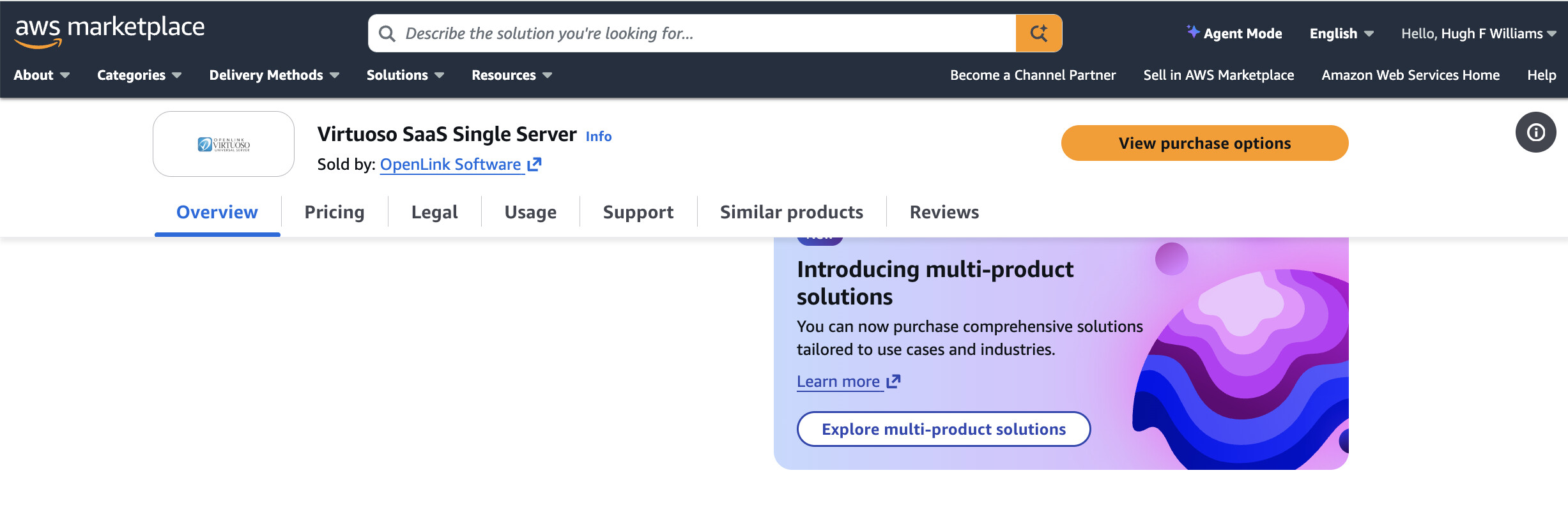
- Open Virtuoso SaaS Single Server and choose View purchase options.
- Select the required contract duration. The public offer currently presents
12-, 24-, and 36-month terms. - Select exactly one plan dimension for the required service tier.
- Review usage-based charges, if any. These apply in addition to the selected
contract price when usage exceeds the included entitlement. - Read and accept the Marketplace terms and EULA.
- Choose whether the agreement should automatically renew at the end of its
term, then select Subscribe.
View purchase options
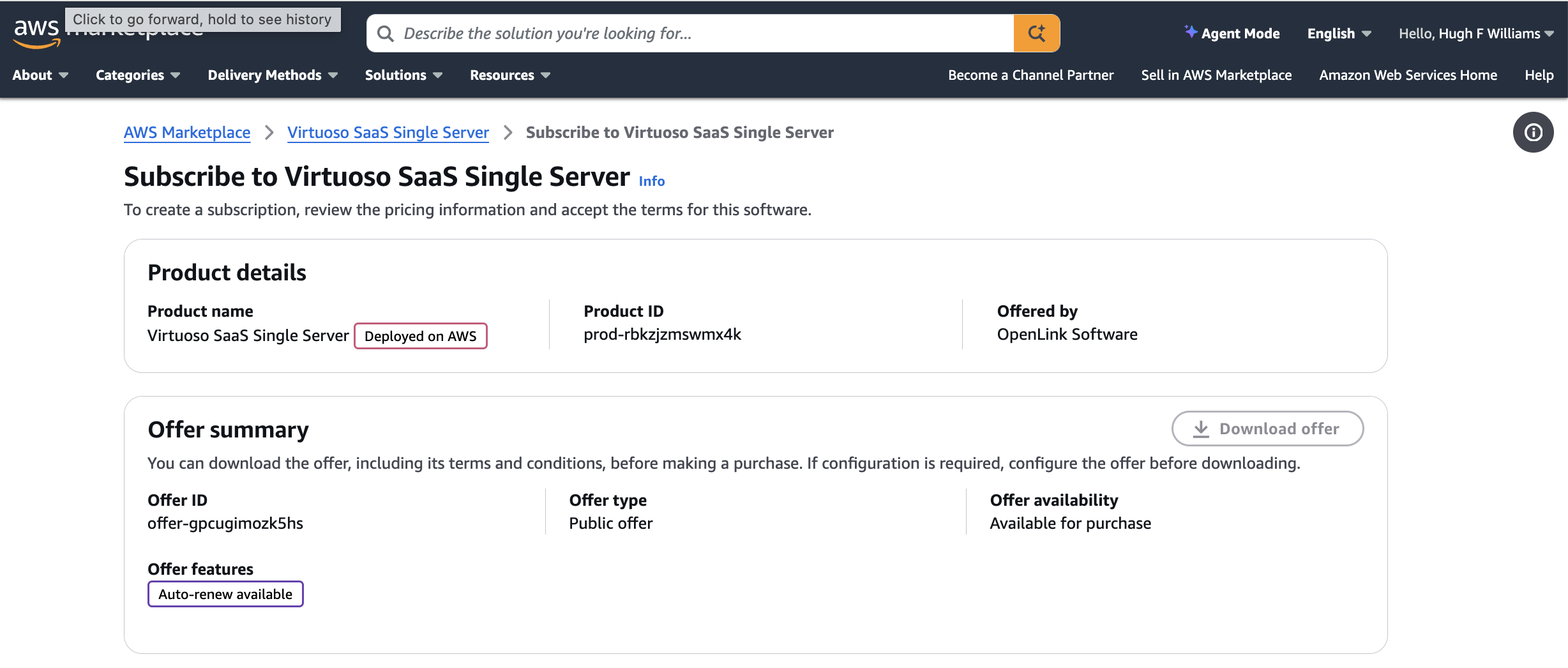
Select Contract Duration

Select One Plan
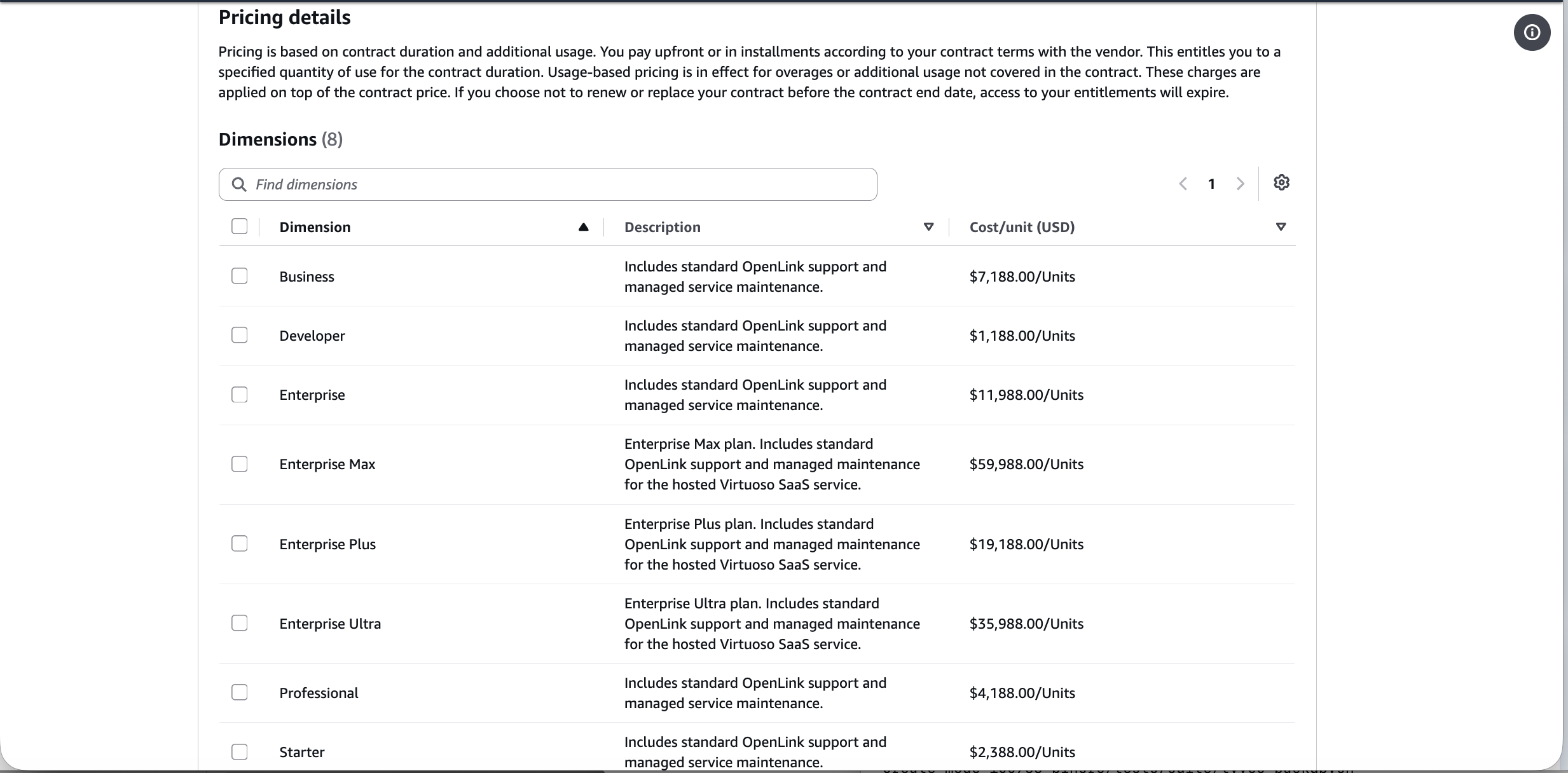
Review Metered Usage Pricing

Accept Terms and Choose Renewal
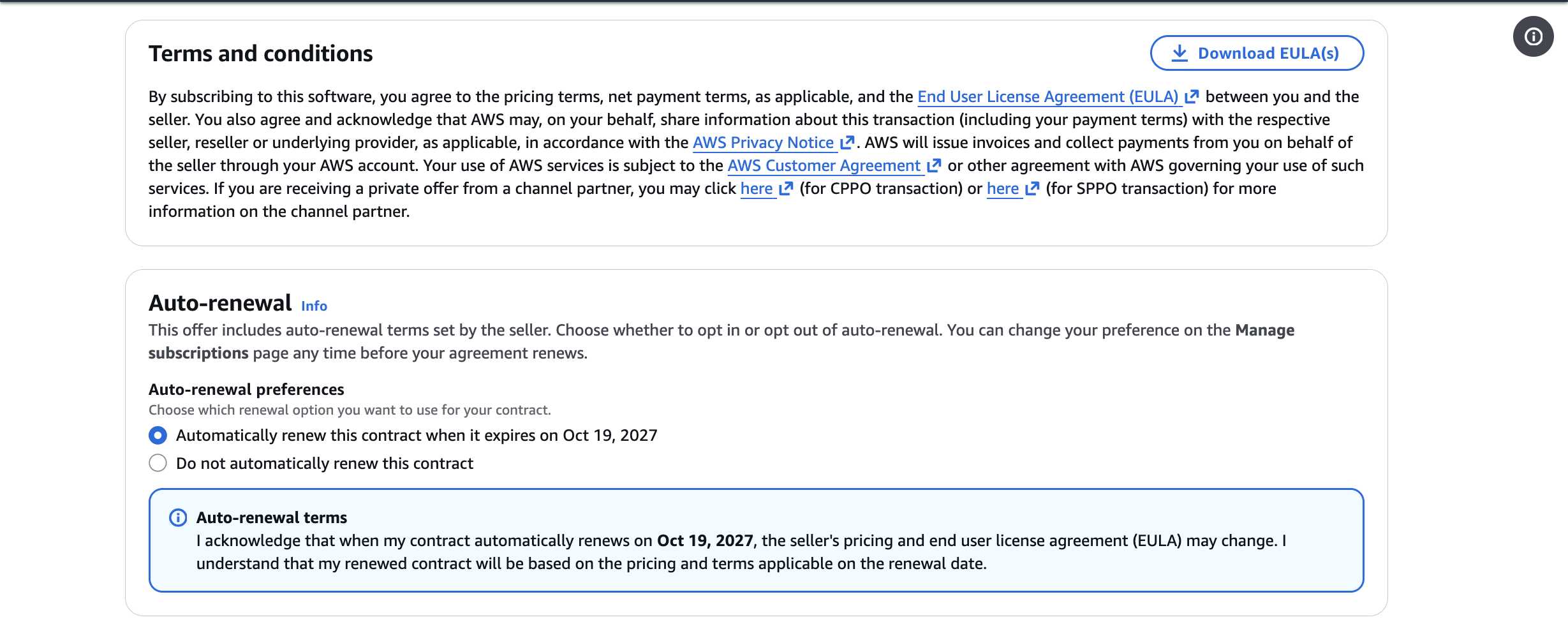
Review Before Subscribing
Confirm the tier, duration, contract price, applicable tax, and renewal
selection before subscribing. A Marketplace agreement is a commercial
contract; turning off auto-renewal prevents the next renewal but does not by
itself end the active term.
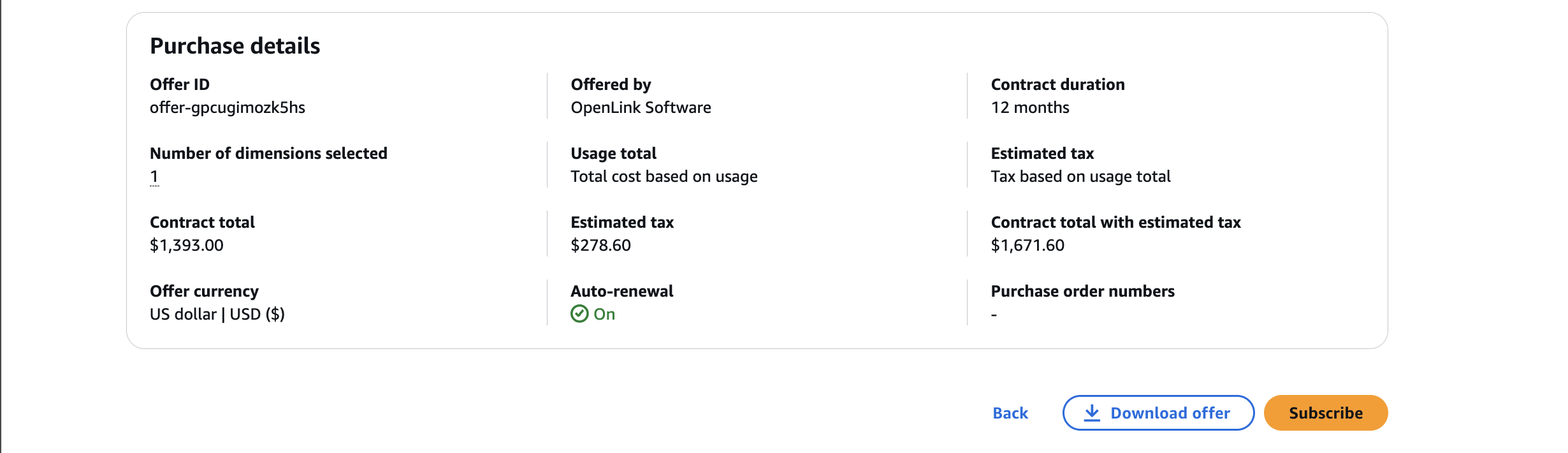
Purchase Confirmation
After AWS Marketplace creates the agreement, select Set up your account.
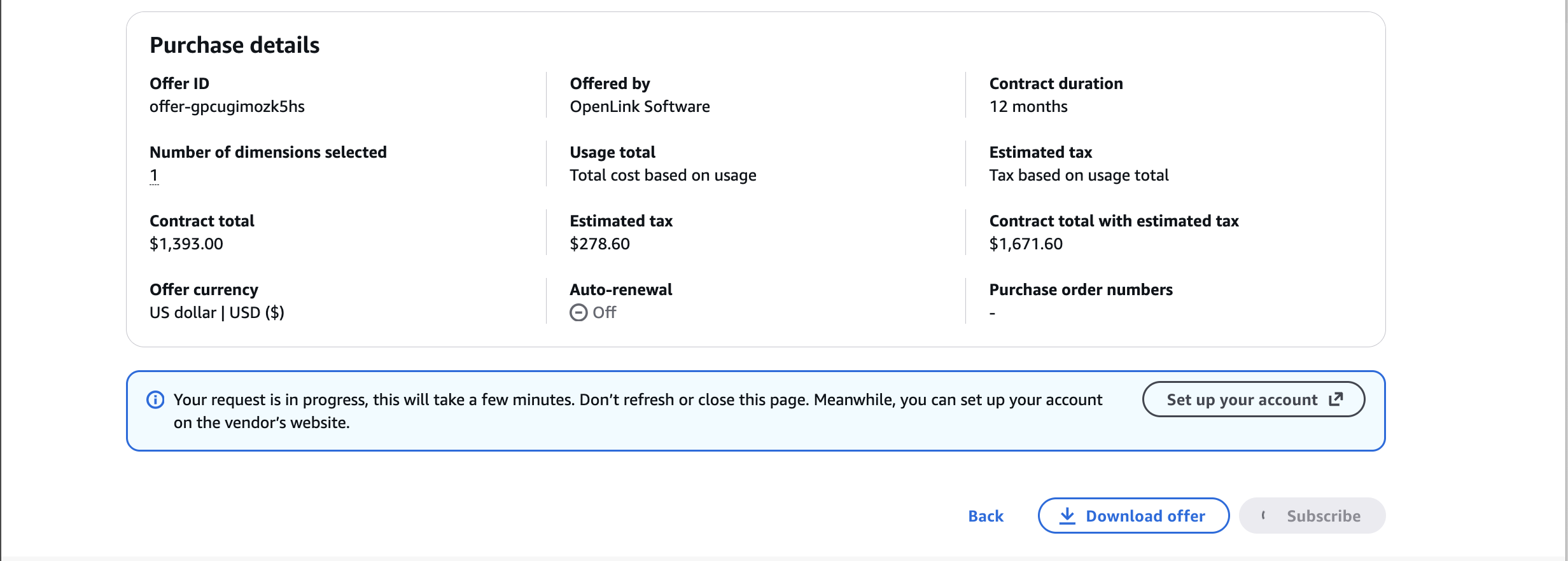
Set Up Your Buyer Portal Account
After Marketplace confirms the purchase, select Set up your account. AWS
Marketplace opens the Virtuoso SaaS identity flow and binds the buyer context
to the portal account.
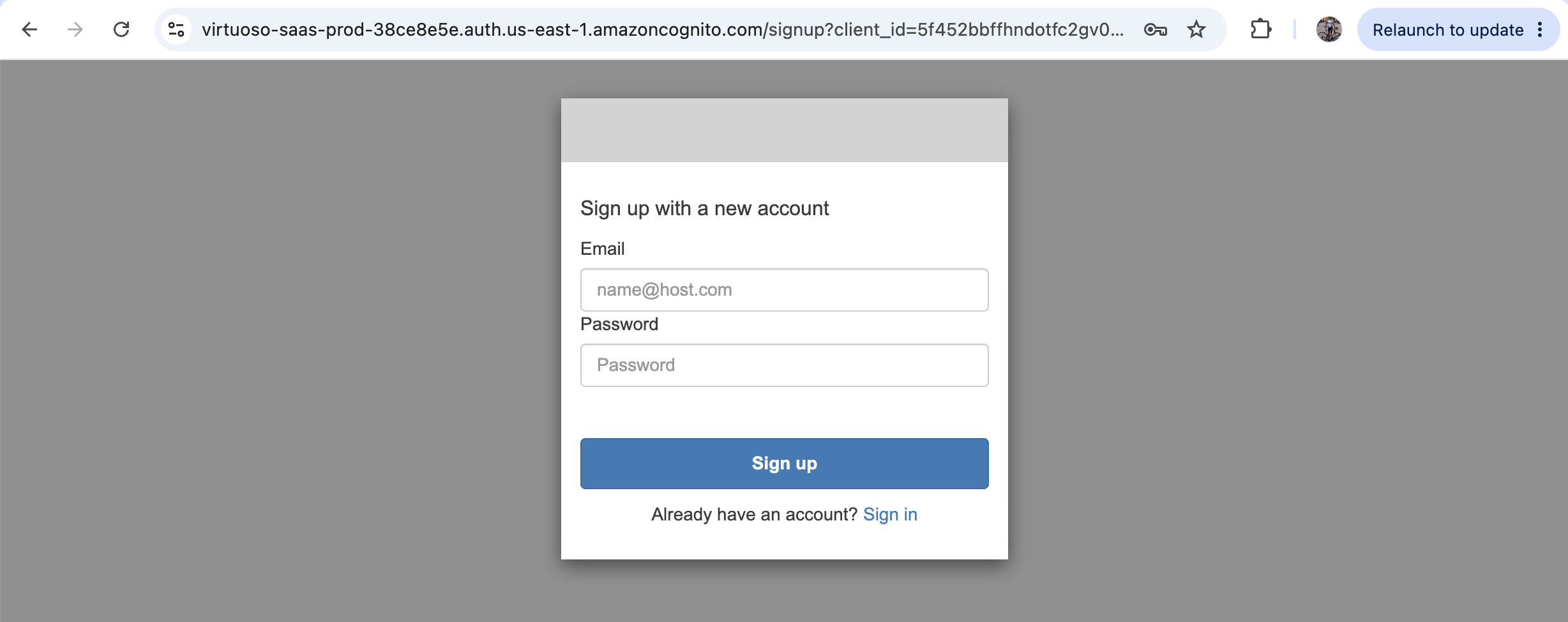
- If you already have a Virtuoso SaaS portal account for this buyer AWS
account, sign in with that account. - Otherwise select Create an account and complete the signup flow.
- Return to the buyer portal after signup or sign-in completes.
Use one portal account per buyer AWS account. Reuse that account for future
portal access and for any additional Marketplace setup links associated with
the same buyer account.

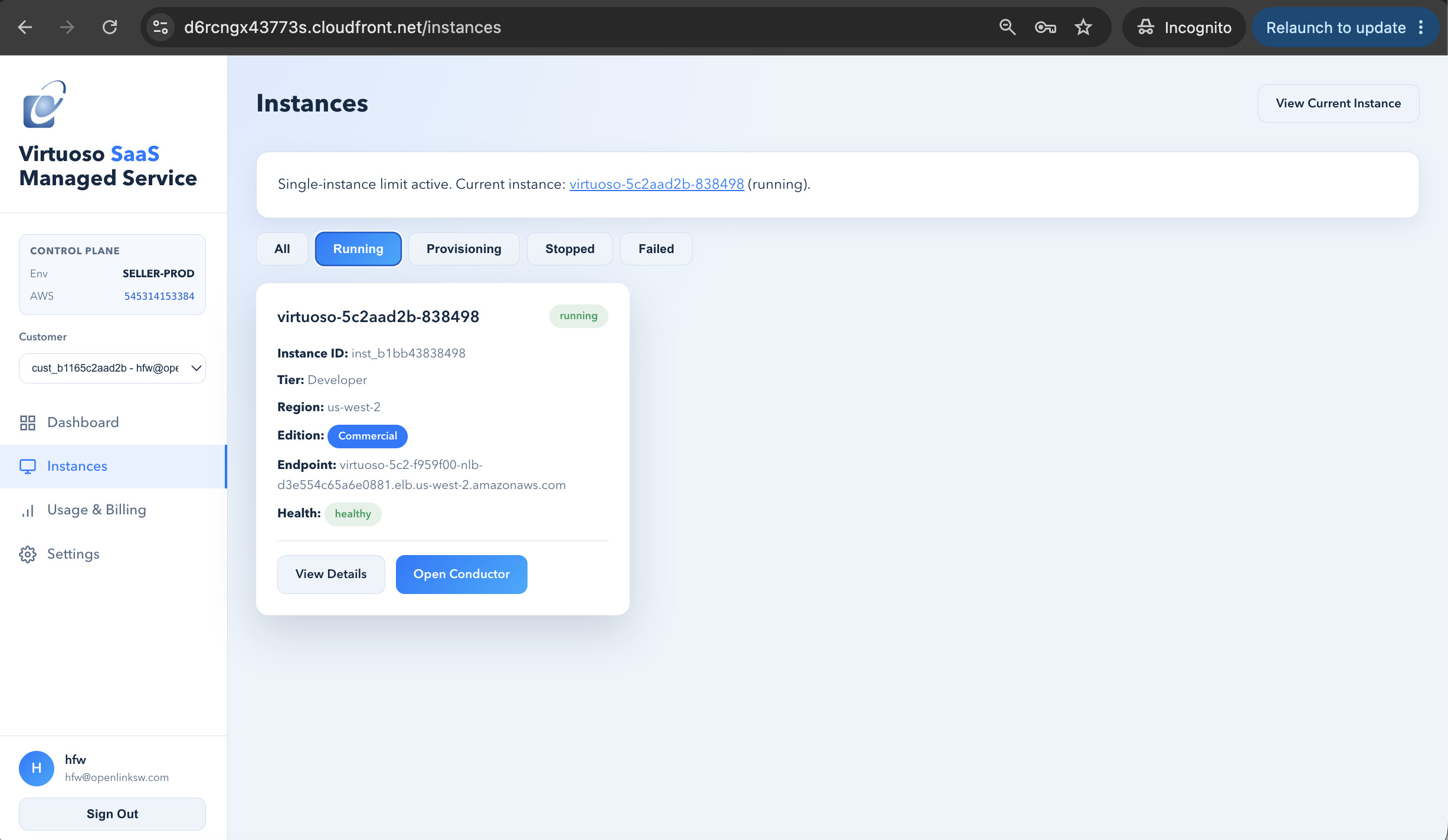
Wait for Provisioning
The buyer portal creates one tenant instance for the active subscription. In
the portal:
- Open Instances.
- Wait for the instance status to become
runningand its health to become
healthy. - Open the instance detail page.
- Use the displayed endpoint links only after the health state is
healthy.
Provisioning can take several minutes. Refresh the Instances page rather
than repeating Marketplace setup while an instance is already provisioning.
Connect to Virtuoso
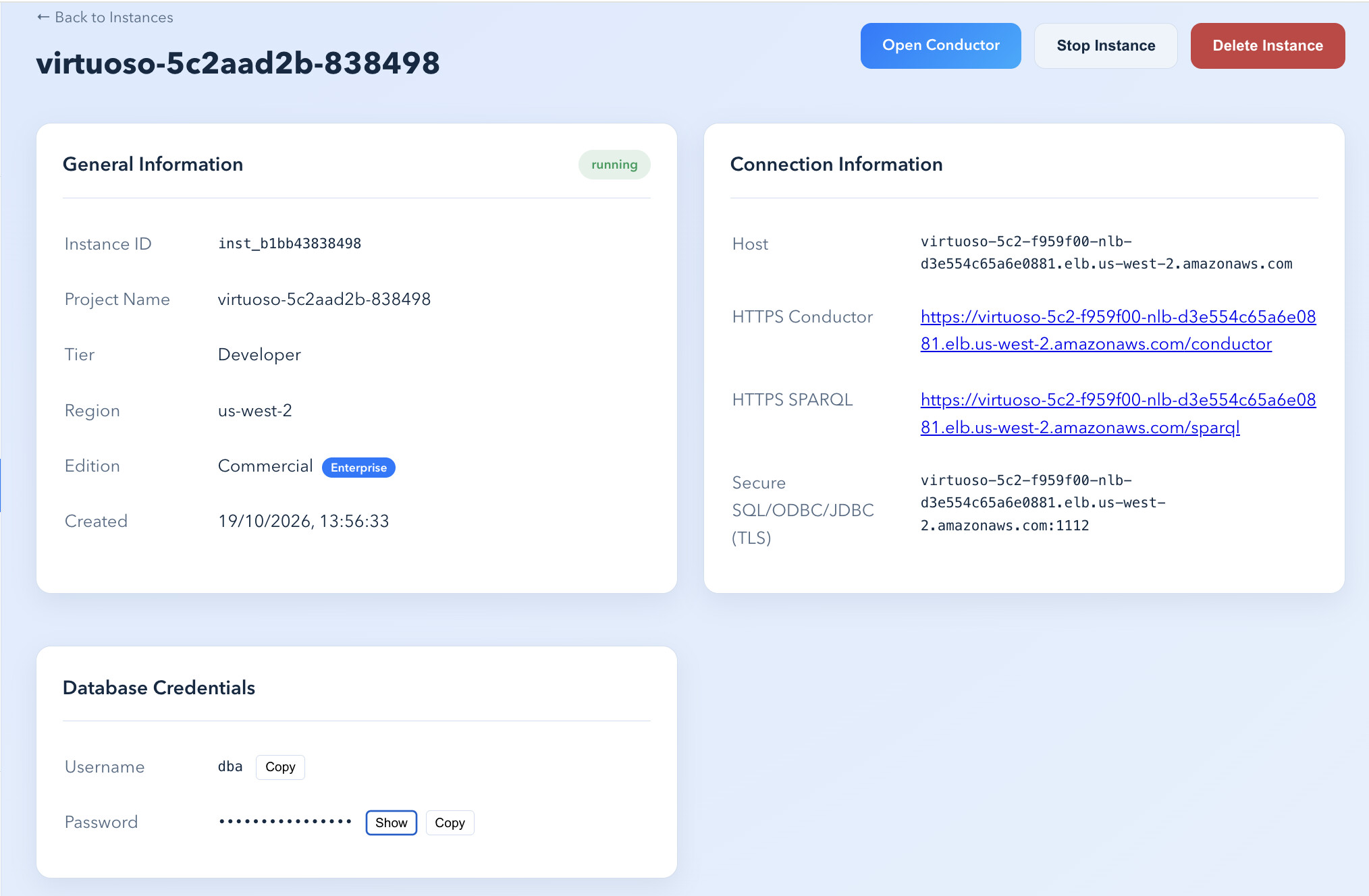
The instance detail page provides the current endpoint values and the database
credentials for the instance.
- HTTPS Conductor: browser administration interface.
- HTTPS SPARQL: SPARQL endpoint.
- Secure SQL/ODBC/JDBC (TLS): hostname and port
1112for TLS SQL clients.
Use the dba username and the password shown in the instance detail page. Do
not place that password in tickets, screenshots, source control, or shell
history.
The detail page shows the service tier, region, endpoints, and a masked
database password. Treat every endpoint and credential as specific to the
tenant shown in the portal.
Use Conductor and SPARQL
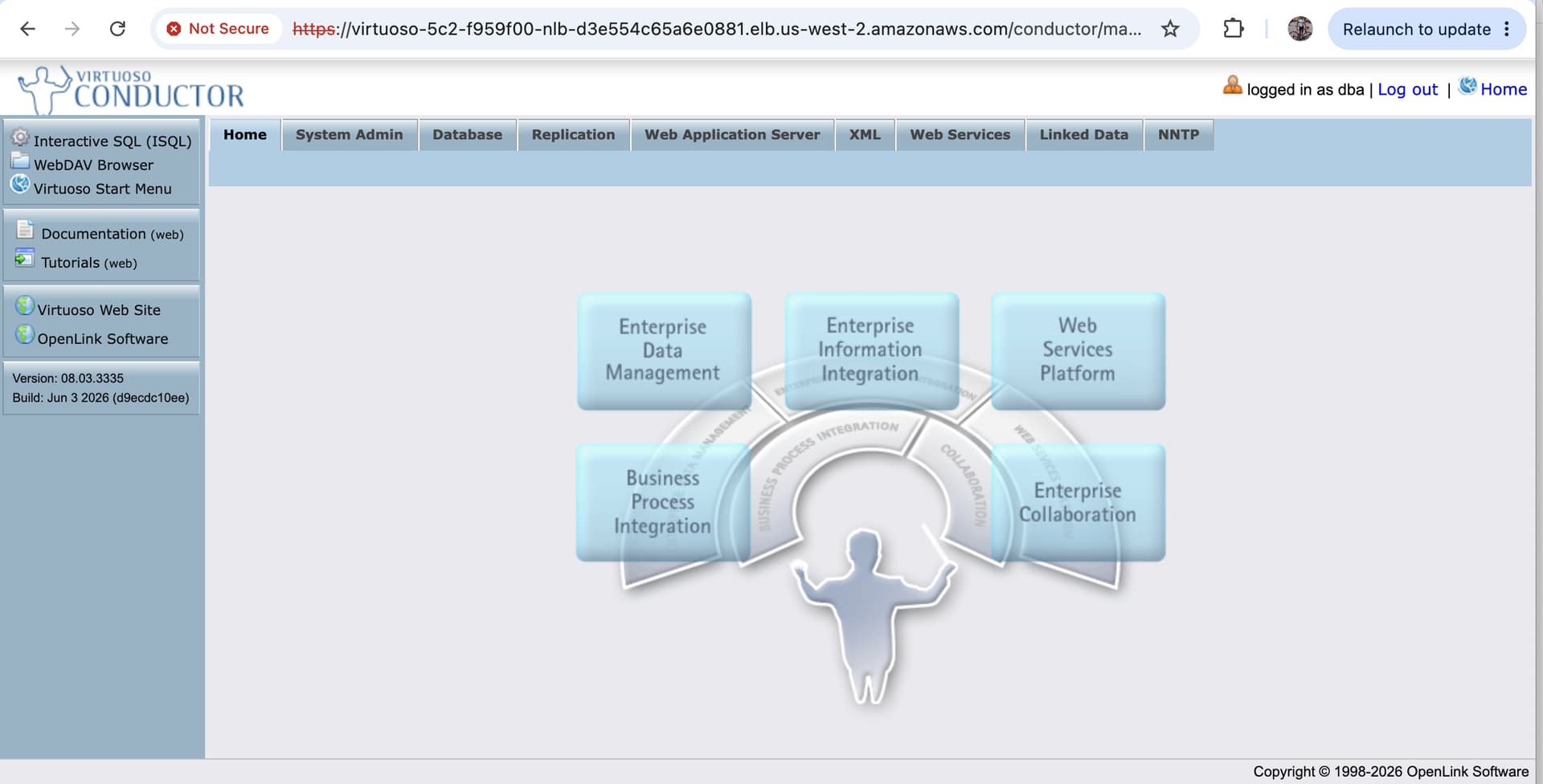
Select Open Conductor or open the HTTPS Conductor link from the instance
details page, then sign in with the database credentials:
The HTTPS SPARQL link opens the SPARQL Query Editor:
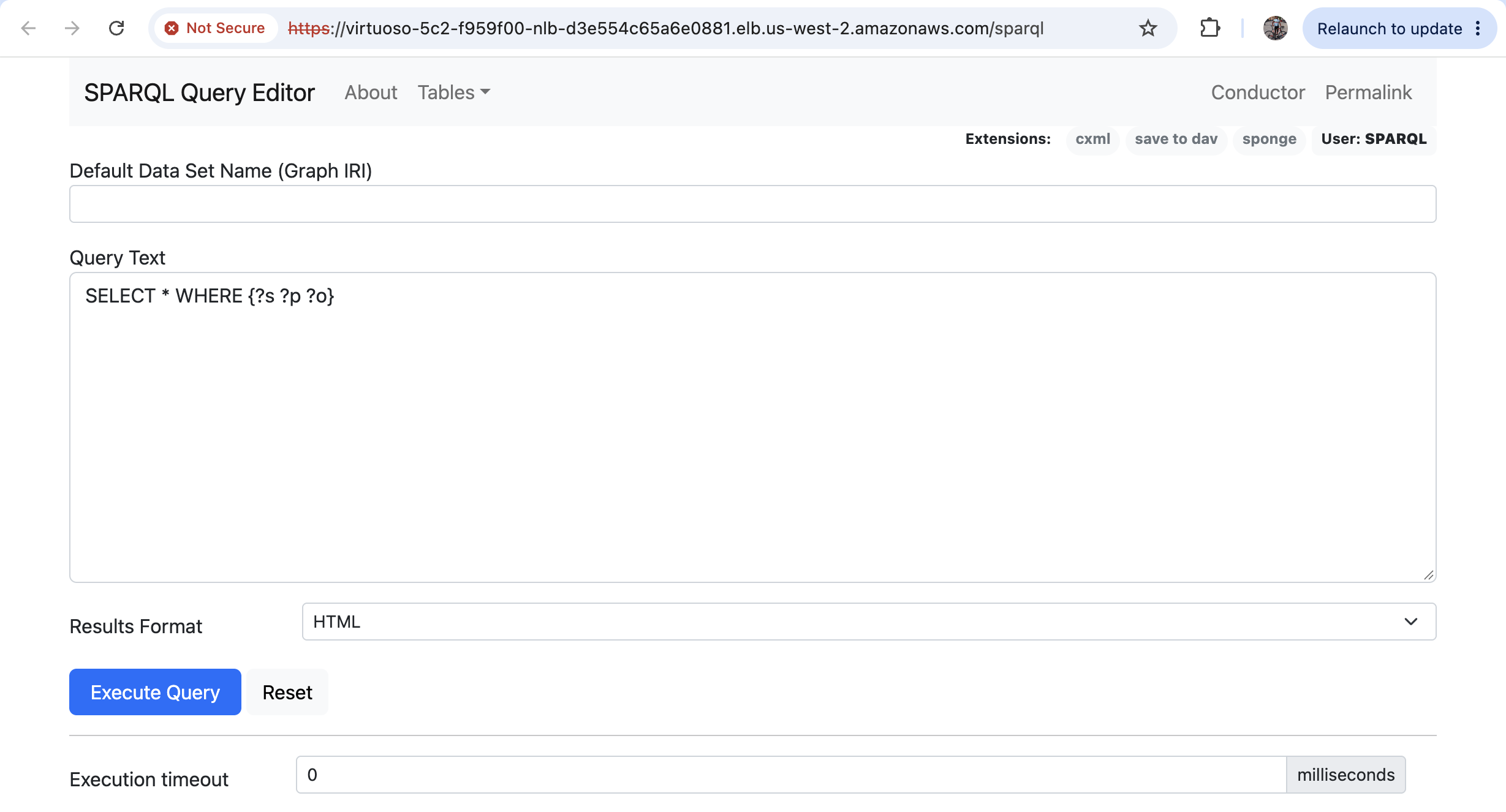
Where a simple initial query to run is:
SELECT * WHERE { ?s ?p ?o } LIMIT 10
Allow TLS SQL Access
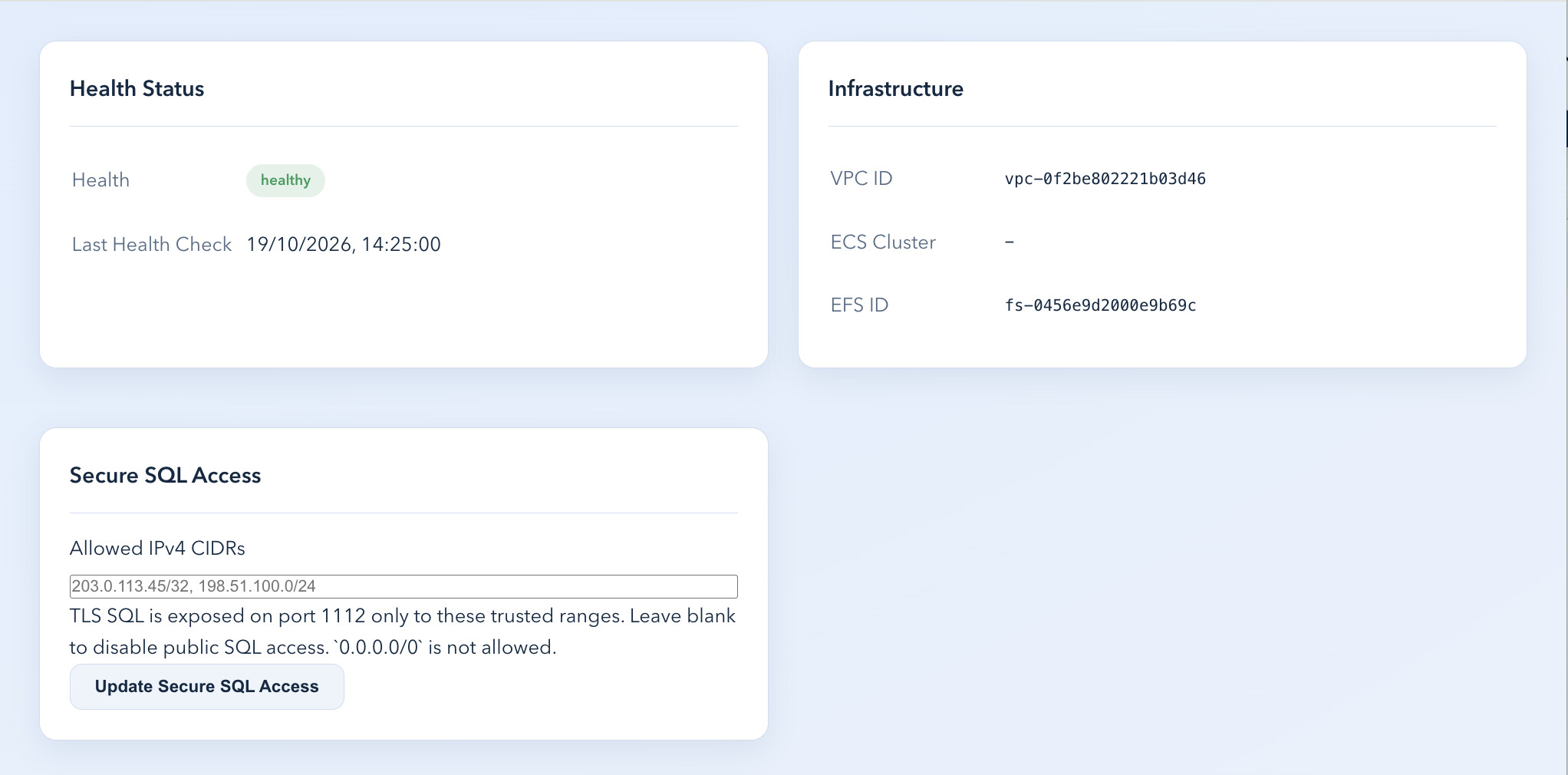
TLS SQL access is closed by default. In the instance detail page, enter only
the trusted public IPv4 CIDR range(s) permitted to connect to port 1112, then
select Update Secure SQL Access.
- A single public address should use
/32, for example203.0.113.45/32. - Separate multiple ranges with commas.
- Leave the field empty to remove public TLS SQL access.
0.0.0.0/0is not permitted.
Connect with isql
Use the hostname shown for Secure SQL/ODBC/JDBC (TLS) and port 1112:
isql <tenant-hostname>:1112 -E dba
Enter the password only when prompted. A successful status(); call confirms
that the TLS SQL connection reached the provisioned Virtuoso server. A
self-signed certificate warning is expected unless the client trusts the
tenant certificate.
SQL> status();
OpenLink Virtuoso VDB Server
Version 08.03.3335-pthreads for Linux
Registered to Virtuoso-AWS-ECS-FARGATE-SaaS
Daily Operations
Start and stop
The instance detail page provides lifecycle controls.
- Stop Instance stops the running tenant while retaining its data.
- Start Instance resumes a stopped tenant. Allow several minutes for the
endpoint health checks to recover. - Delete Instance terminates the tenant infrastructure. It is not a
substitute for cancelling or changing a Marketplace agreement.
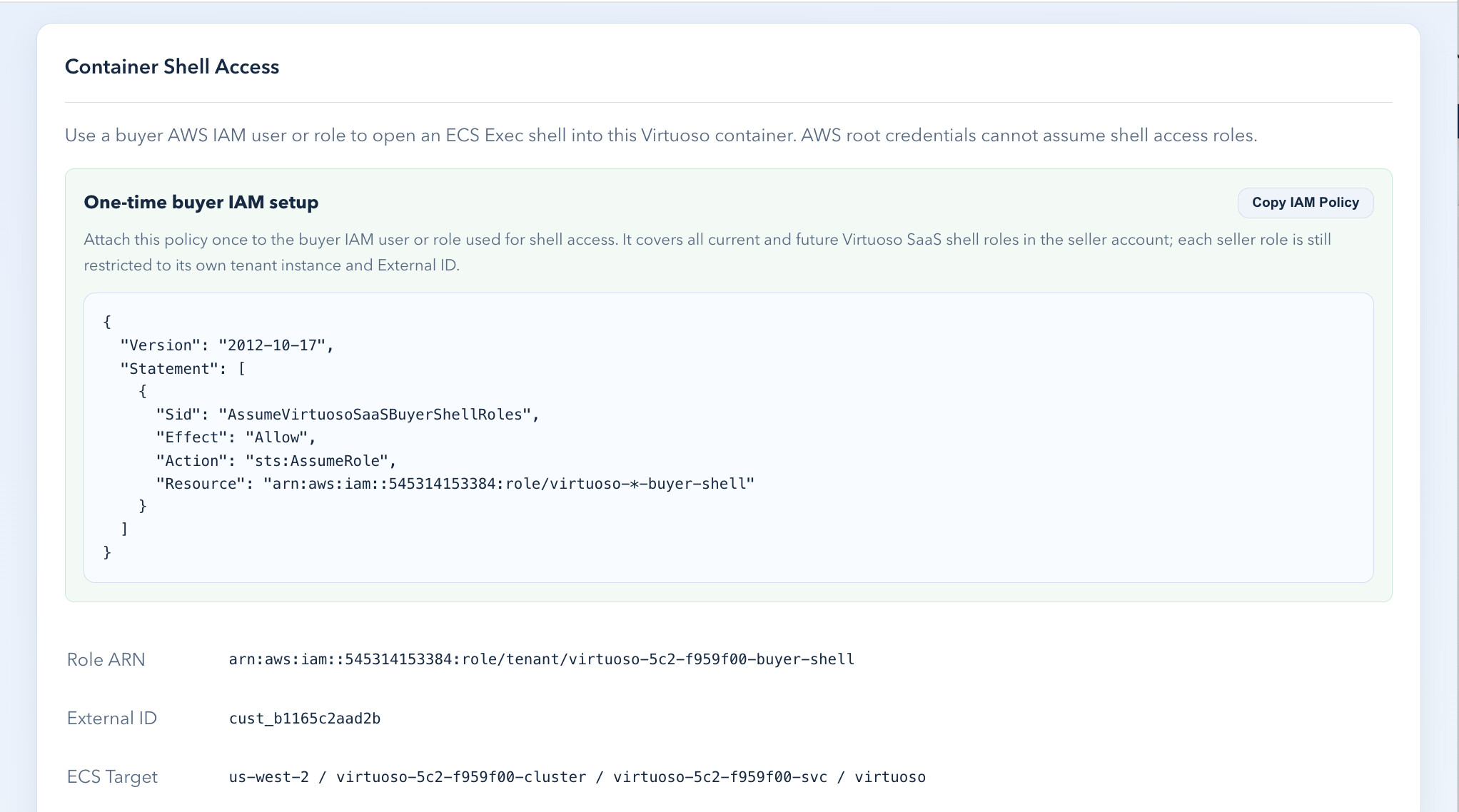
Container shell access
The instance detail page provides the buyer-specific IAM policy, role ARN,
external ID, and generated AWS CLI script required for ECS Exec shell access.
Use a buyer IAM user or role, not the AWS account root user. Follow the
Buyer Container Shell Access Runbook.
Backup and restore
The portal exposes the backup location and a generated online-backup script.
The restore path is intentionally controlled because Virtuoso must be stopped
before replacement database files are applied. Follow the
Virtuoso Online Backup and Recovery Runbook.
Billing, Renewal, and Cancellation
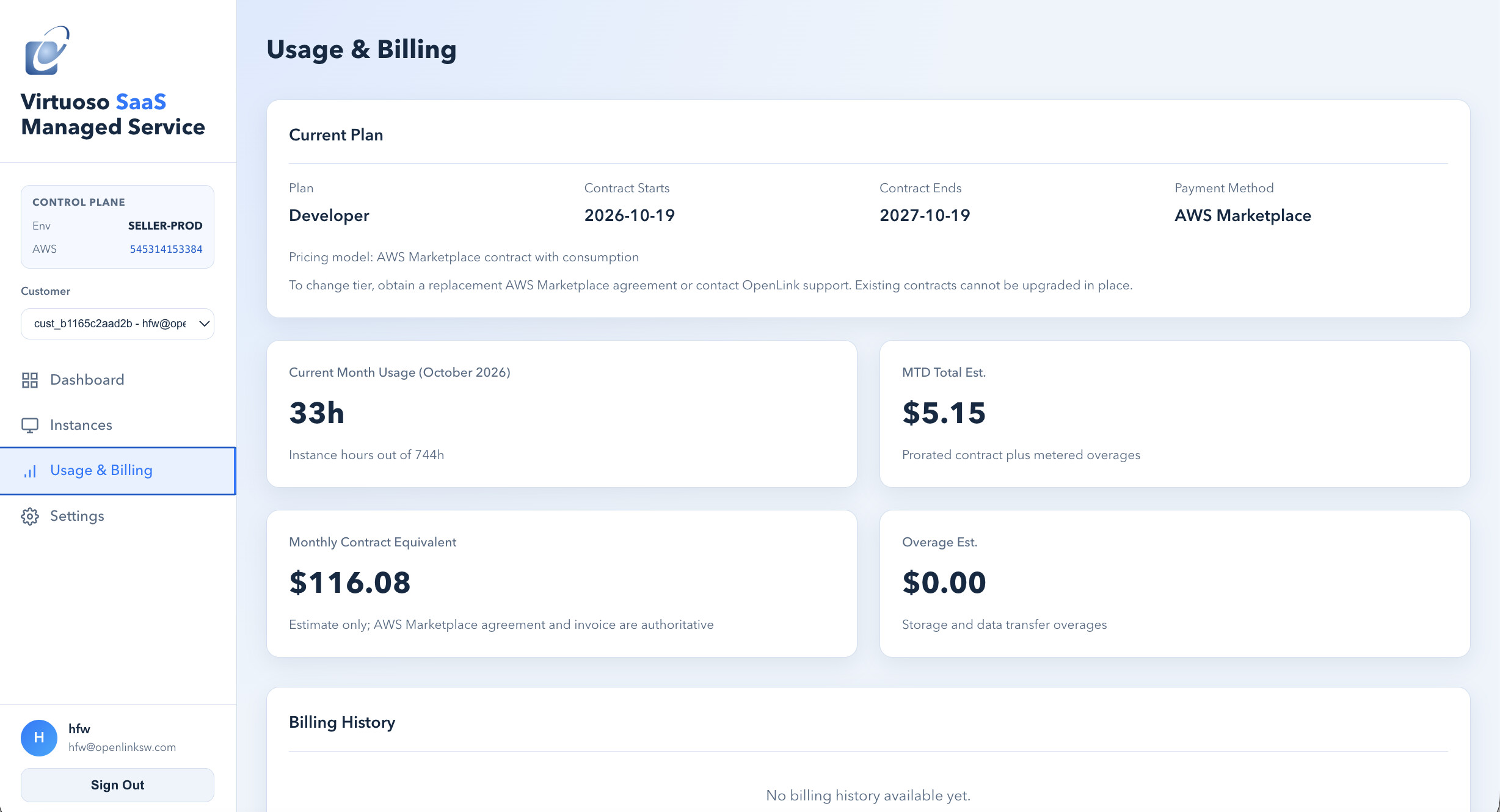
Review usage and billing
Use the buyer portal Usage & Billing page to review the selected plan,
billing cycle, current-month instance hours, estimated contract amount, and
any estimated storage or data-transfer overage. These values are operational
estimates; AWS Marketplace remains the billing authority and issues the
invoice.
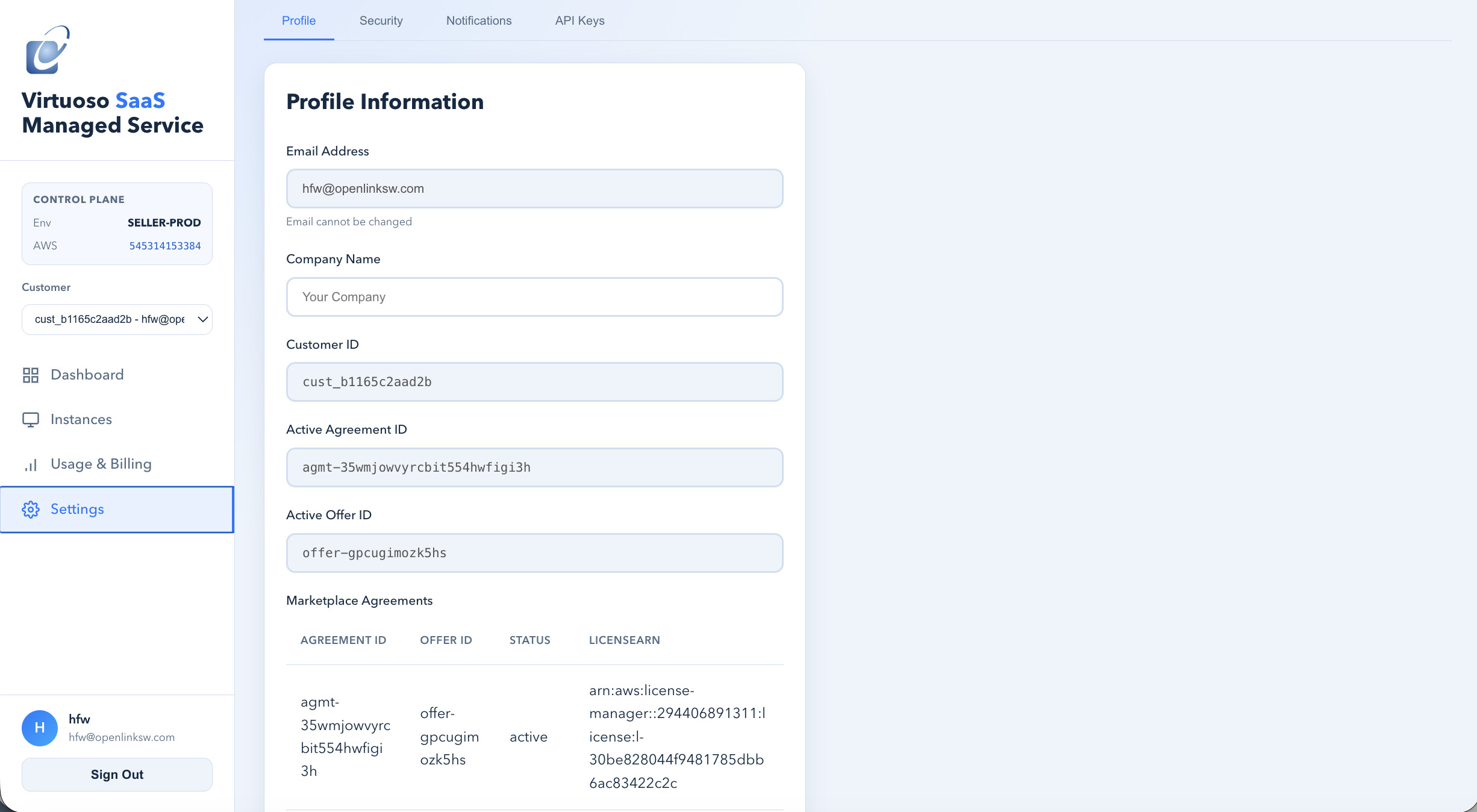
Review your profile and agreement
Use Settings to review the portal account email, optional company name,
customer ID, active Marketplace agreement ID, active offer ID, and the list of
Marketplace agreements associated with the buyer account. The page also
provides Security, Notifications, and API Keys settings.
- Use Manage subscriptions to review the agreement and its auto-renewal setting.
- Turning off auto-renewal applies to the next renewal. It does not terminate an active contract or automatically remove a tenant.
- For cancellation, refund, or an early termination request, follow the agreement terms and contact OpenLink support or AWS Marketplace Support.
- See the AWS Marketplace guidance on cancelling a subscription and requesting a refund.
Troubleshooting
The portal has no instance
- Confirm that the AWS Marketplace agreement is active in the same buyer AWS
account used for setup. - Open Set up your account from the Marketplace agreement, not from an
old bookmarked registration URL. - Sign in with the portal account already associated with that buyer AWS
account. - Refresh Instances and wait for provisioning to complete.
Wrong user for this Marketplace setup link
Sign out of the buyer portal, reopen Set up your account from the active
Marketplace agreement, and sign in with the portal account previously bound to
that buyer AWS account.
A setup link has expired or is invalid
Do not reuse it. Open the active agreement in AWS Marketplace and choose
Set up your account again.
TLS SQL cannot connect
Confirm that the source public IP address is included in Allowed IPv4 CIDRs
and that the client uses TLS on port 1112. A self-signed certificate warning
is expected unless the client has been configured to trust the tenant
certificate.
Successful Onboarding Checklist
- Marketplace subscription completed for the intended buyer AWS account.
- Buyer portal account created or signed in.
- Instance status is
runningand health ishealthy. - Conductor and SPARQL endpoint links respond.
- TLS SQL works from an explicitly allowed CIDR and is rejected outside it.
- Database credentials have been stored securely.
- Renewal preference has been reviewed in AWS Marketplace.