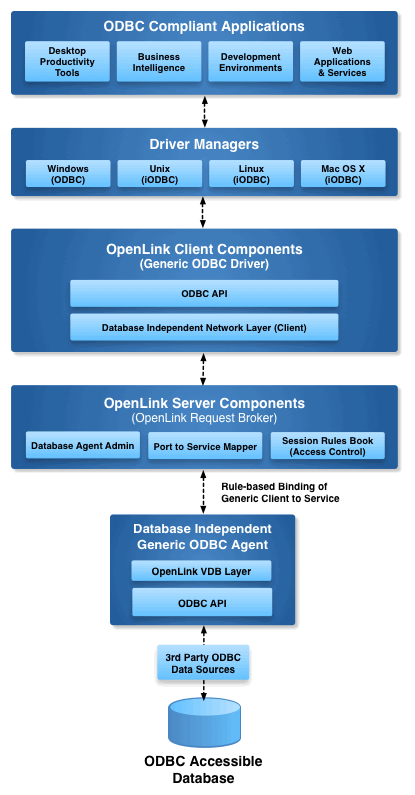
This installation guide walks you through installation of the Enterprise Edition ODBC to ODBC Bridge Driver to a Personal or Application Server host functioning as a client to a database that’s accessible via its native ODBC Driver.
Step 1: Download the Installer Archive
-
Visit the OpenLink ODBC Enterprise Edition Driver Download Page to download the appropriate ODBC to ODBC Bridge Driver.
-
Alternatively,
curlcan be used to download the installer archives andinstall.shscript directly:curl -O https://download3.openlinksw.com/uda/components/misc/install.sh curl -O https://download3.openlinksw.com/uda/components/9.0/x86_64-generic-linux-glibc25-64/oplodbc.taz curl -O https://download3.openlinksw.com/uda/components/9.0/x86_64-generic-linux-glibc25-64/odbc_mv.taz curl -O https://download3.openlinksw.com/uda/components/9.0/x86_64-generic-linux-glibc25-64/oplrqb.taz curl -O https://download3.openlinksw.com/uda/components/9.0/x86_64-generic-linux-glibc25-64/odbc_admin.taz
Step 2: Pre-Installation Configuration
-
You must possess third-party or native ODBC drivers that connect to your target data source. A client portion of these drivers must be installed on the same machine as the Multi-Tier “Enterprise” Edition Request Broker and Bridge Agent(s) for ODBC Data Sources.
-
The ODBC driver library file (or a symbolic link to it) must be included in the active shared library environment variable (e.g., LD_LIBRARY_PATH, LIBPATH, SHLIB_PATH).
-
Supporting libraries (or links to them) may also need to be included in this variable value.
-
-
You must know whether the local ODBC components are 32-bit or 64-bit. The Multi-Tier server components must match the bit format of the local ODBC components, not the OS.
Step 3: Installation
-
Log onto the target machine for the installation and create a suitable OpenLink installation directory
{OPENLINK_INSTALL}. -
Copy all the downloaded components to the
{OPENLINK_INSTALL}directory, which are theinstall.sh,oplrqb.taz,oplodbc.taz,odbc_admin.taz,odbc_mv.tazfiles. -
Install OpenLink components using the
install.shshell script with the command –
sh install.sh
-
Take care to enter correct information when prompted pertaining to ports, passwords, etc and ensure that you note these down for future use.
-
The installation should finish without error.
Step 4: Configuration
- To setup the OpenLink environment, from the
{OPENLINK_INSTALL}run the command –
. ./openlink.sh
-
Open the file
{OPENLINK_INSTALL}/bin/oplrqb.iniwith a suitable text editor such asvi. -
Place the License file(s) (
oplrqb.lic, odbc.lic) either purchased or obtain during the evaluation download process in the{OPENLINK_INSTALL}/bindirectory. -
Start the OpenLink License Manage (
oplmgr) by going to the{OPENLINK_INSTALL}/bindirectory and running the command –
./oplmgr +start
- Start the OpenLink Request Broker (
oplrqb) by going to the{OPENLINK_INSTALL}/bindirectory and running the command –
./oplrqb -v     ;;; To start in background mode
or
./oplrqb -fd    ;;; To start in foreground debug mode
Step 5: Create Data Source Name (DSN)
-
Open the file
{OPENLINK_INSTALL}/bin/odbc.iniwith a suitable text editor such asvi. -
Locate and edit the sample OpenLink Multi-Tier ODBC data source (DSN) called
[OpenLink]created during the installation process and edit as follows –
[OpenLink]
Driver          = {OPENLINK_INSTALL}/lib/oplodbc.so
ServerType      = Odbc
Host            = localhost:5000   ;;; replace "localhost" with the hostname the OpenLink Broker (oplrqb) runs on if not on the same machine
Database        = {Third Party ODBC DSN Name}
Options         =
Username        = {username}
Password        = {optional password}
FetchBufferSize = 99
ReadOnly        = no
DeferLongFetch  = no
JetFix          = no
WideAsUTF16 = Y
Description     = Sample Informix Multi-Tier Connection
Step 6: Test connection
Using the iODBC Runtime Environment
- Use the OpenLink iODBC
iodbctestsample tool packaged with the HTTP-based OpenLink ODBC Administrator as follows to make a test connection –
$ cd {OPENLINK_INSTALL}
$. ./openLink.sh
$ iodbctest "DSN=OpenLink;UID={username};PWD=xxxxxxxx"
iODBC Demonstration program
This program shows an interactive SQL processor
Driver Manager: 03.52.0507.0105
Driver: 08.02.1217 OpenLink Generic ODBC Driver (oplodbc.so)

SQL>
- SQL statements can now be issued directly against the target database from the
SQL>prompt –
SQL> select count(*) from orders

(count(*))
-----------------
23

 result set 1 returned 1 rows.

SQL>
- The ODBC to ODBC Bridge Driver is now ready for use with target ODBC application(s).
Using the unixODBC Runtime Environment
- When using the unixODBC Driver Manager the
WideAsUTF16 = Yparameter needs to be added to the target ODBC DSN, if not in place already, to enable successful connections with applications built using the unixODBC SDK, e.g., itsisqltest application –
$ isql OpenLink {username} {password}
+---------------------------------------+
| Connected!                            |
|                                       |
| sql-statement                         |
| help [tablename]                      |
| echo [string]                         |
| quit                                  |
|                                       |
+---------------------------------------+
SQL> select count(*) from orders
+------------------+
| (count(*))       |
+------------------+
| 23               |
+------------------+
SQLRowCount returns -1
1 rows fetched
SQL>